IMPORTANT: if unsure, seek professional assistance from a qualified computer technician in your local area. Following some of these insights may result in you losing your important data. ALWAYS BACKUP Important Data and Media Files first.
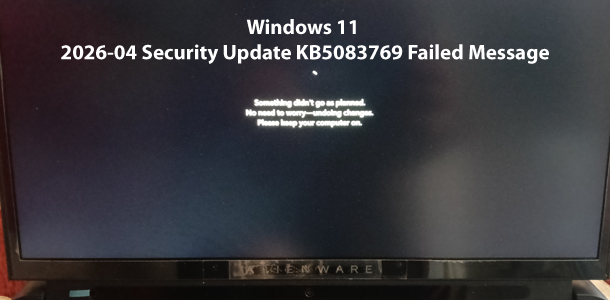
If you’re like me who needs to ensure their computer is up-to-date and considers Microsoft Windows 11 Security updates as critically important. And yet, the latest 2026-04 Security Update KB5083769 keeps installs the update, but when your device Restarts, you get this annoying message:
Something didn’t go as planned. No need to worry. Undoing changes made to your computer
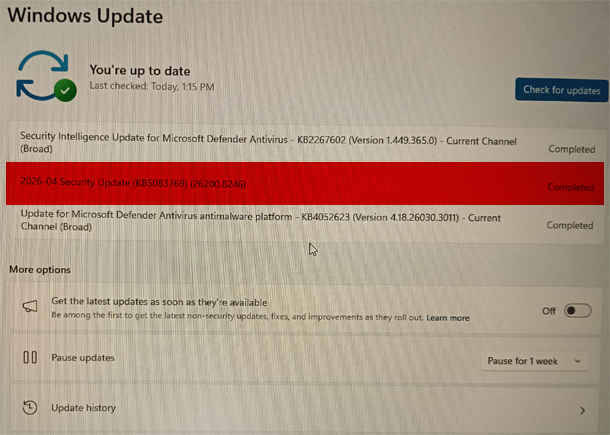
And then when you login to Windows again, and go to Settings > Windows Update shows update fail, re-install 2026-04 Security Update (KB5083769) (26200.8246). But the cycle occurs again. If your Windows 11 update reaches 100%, stalls, and then displays the annoying message again. This means:
Your Windows 11 is facing a deep-seated system conflict. While many suggest surface-level fixes, the root causes are usually architectural.
Part 1: The 3 Core Reasons for This Failure
There are almost millions of different Windows OS setups around the world, that is why, you will not find an easy answer when troubleshooting this issue. But I condensed the causes for you in to 3 main culprits.
1. Version “Ghosting” & Identity Mismatch
This occurs when a system has been upgraded through multiple iterations (e.g., Windows 10 Home → Pro → Enterprise). The update service detects a conflict between the current OS files and the licensed security templates in the Registry. If your boot sector is stamped with an “Enterprise” ghost but you’re running “Pro,” the security handshake fails.
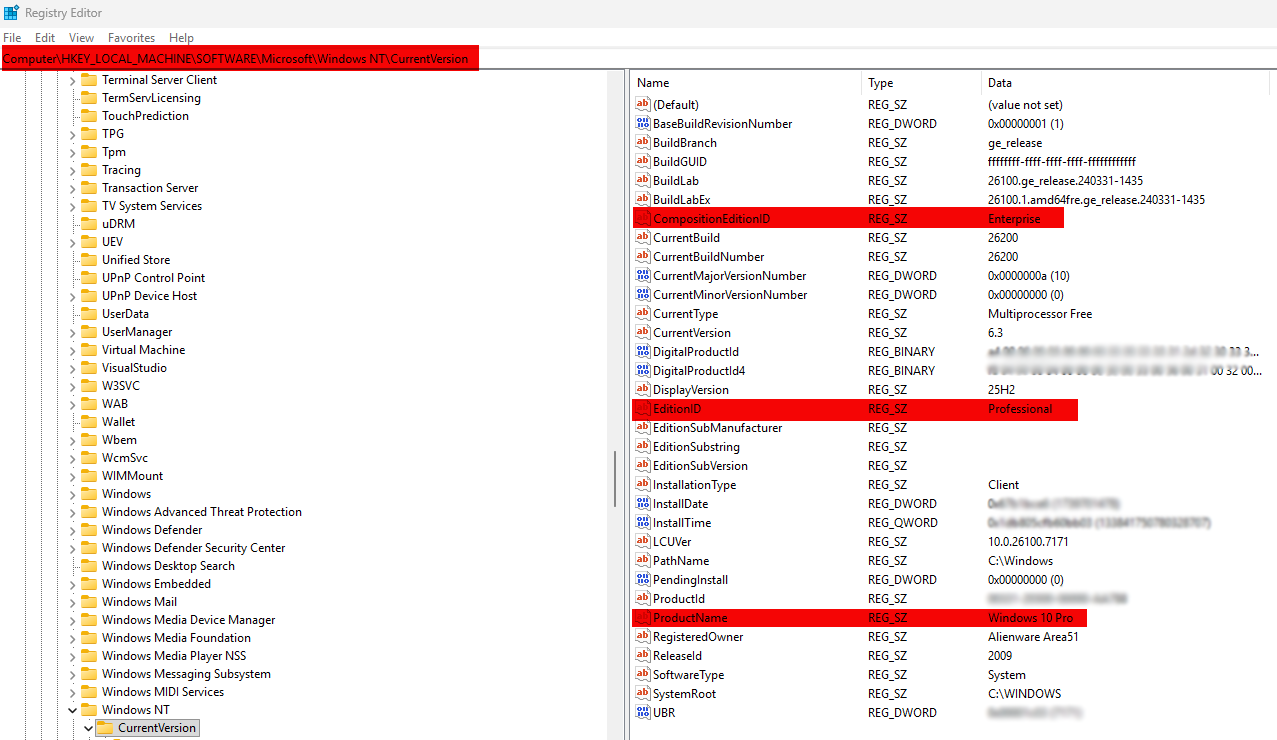
As you can see in the image, when I bought the Dell Alienware Area-51 R2 it came pre-installed with Windows 10 Pro (ENTERPRISE) Edition. But then, I upgraded my machine to Windows 11 Pro version. It seems that this particular security update KB5083769 is getting confused because Windows 11 requires Trusted Platform Module (TPM) enabled. When it tries to match TPM module cryptographic keys, there must be a mismatch, hence installation aborts.
To check yours. Open Registry Editor (search regedit.exe) and browse into HKEY_LOCAL_MACHINE\SOFTWARE\Microsoft\Windows NT\CurrentVersion double check your current version compared to factory installed version. If there is a mismatch, this could cause issues.
2. EFI Partition “Choke Point”
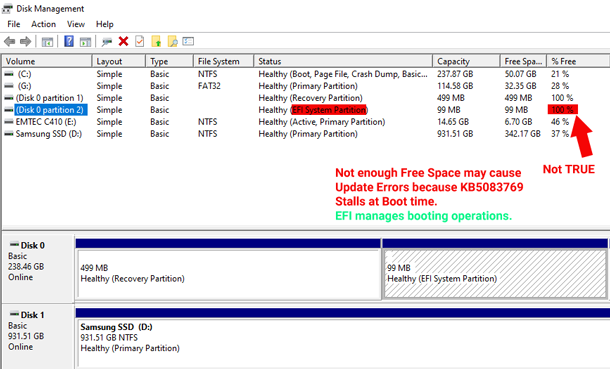
Modern Windows updates require significant “scratch space” within the hidden EFI System Partition (usually 100MB by default). If this partition is cluttered with international fonts, driver logs, or BIOS-level bloat, the KB5083769 update cannot physically write the new bootloader files. It hits a wall and rolls back.
3. TPM & BitLocker Binding Issues
Whether you have BitLocker on or not, KB5083769 update must securely bind to your TPM 2.0 chip. If your Key Protectors are missing, or the partition table is misaligned (common on dual-drive setups), Windows cannot verify the boot path integrity. Without a secure hardware link, the update is rejected as a security risk.
The Verdict: Instead of fighting tiny partitions and registry ghosts for hours, the most efficient and stable solution is a Clean Windows 11 Reinstall. This wipes out “tech debt” and resets your partition architecture for future updates.
Part 2: The Step-by-Step “Clean Slate” Fix
Don’t waste your valuable time trying to manually downloading KB5083769 update from Microsoft Update Catalog. Instead simply do this:
Step 1: Preparation
- Backup all work files, web projects, and Photoshop assets to an external drive.
- Create a bootable USB using the Windows 11 Media Creation Tool.
- Pro Tip: To ensure you can select “Pro” version specifically, add a file named ei.cfg to the Sources folder on the USB containing:
[Channel]

_Retail
Step 2: The “Nuke” & Re-Partition
- Boot from the USB (Tap DEL, F2 or F12 on Alienware/Dell during startup).
- Select Custom: Install Windows only (advanced).
- CRITICAL: Delete every existing partition on your primary OS drive until you see only “Unallocated Space.” This ensures Windows creates a fresh, properly sized EFI partition.
- Select the empty space and click Next.
Step 3: Final Setup
- Log in with your Microsoft Account to automatically reactivate your Digital License.
- Run Windows Update immediately. The KB5083769 update will now install flawlessly on the clean, unencumbered partition structure.
Video Tutorial: How-to Install Windows 11 2026-04 Security Update KB5083769 Manually
As I’ve said before, don’t waste your valuable time trying to manually downloading KB5083769 from Microsoft Update Catalog. Why, because KB5083769 has 2 parts kb5043080 (part 1 is the prerequisite), and you must run them together in correct steps. But if you want to try that approach for fixing KB5083769 updating issues, then download both:
- windows11.0-kb5043080-x64.msu (around 500mb)
- windows11.0-kb5083769-x64.msu (around 4.5gigs)
Then, make sure Go to Settings > Windows Update > TOGGLE OFF auto updates AND Pause updates for 1 week.
Since Windows updates often have dependencies, it is best to execute them sequentially to avoid update failures. The most efficient way to do this would be by using:
wusa.exe (Windows Update Standalone Installer)
HOW?
- Move both .msu files into a single folder (e.g., C:\updates).
- Open Command Prompt (or PowerShell) as Administrator.
- Run the following command (adjust the paths as necessary):
wusa.exe "C:\updates\windows11.0-kb5043080-x64.msu" /quiet /norestart && wusa.exe "C:\updates\windows11.0-kb5083769-x64.msu" /quiet /promptrestart
What this code does:
- &&: This ensures the second update starts only after the first one finishes successfully.
- /quiet: Runs the installation in the background.
- /promptrestart: Will ask you to reboot only after the second file is finished.
After the restart, you can verify they both installed correctly by going to Settings > Windows Update > Update History.
Video Tutorial: How-to Troubleshoot and Fix Windows 11 Update KB5083769 Not Installing Issues
To learn more about troubleshooting this issue visit: Fixing Windows 11 2026-04 Security Update KB5083769 Not Installing Issue
