If there is 1 report in Google Search Console that actually tells you the actual quality of a website in the eyes of Google, it is Page Indexing > ‘Discovered – currently not indexed’ by Google systems report.
If you are a beginner to the world of search engine optimization, or you are a website owner with little technical skills, then, finding the solution for fixing unclear status for Discovered content will be almost impossible, unless of course you are here at RankYa. So let’s begin our troubleshooting.
Understanding the ‘Discovered – currently not indexed’ Issue
If you see “Discovered – currently not indexed” in your Google Search Console report, it means Google knows your page exists but has not visited (crawled) it yet. This usually happens because Google’s systems decided to reschedule the crawl to avoid overloading your server. You will notice the “last crawl” date is empty for these URLs.
To learn more about the technical definition of this status, you can visit the official Google Search Console Help page.
What Does Google Index?
Indexing isn’t just about your text. Google looks at various file types, including:
- HTML pages
- Images and Video files
- PDFs and other document formats
You can see a full list of indexable file types here.
How Google Systems Work
Google uses complex algorithms and “Googlebot crawler” to process the WWW. These systems follow specific guidelines to decide which pages are worth the resources required to fetch and index them. If your site doesn’t meet certain standards, Google might delay the indexing process, or worse yet, decide not to index.
For those interested in the technical side, Google has shared insights on demystifying crawling and fetching.
Video Tutorial: Fixing ‘Discovered – currently not indexed’ by Google Systems Issues
Steps to Fix the Problem
If your pages are stuck in this status, follow these main areas of improvement:
1. Check the Technical Basics
First, ensure there are no technical “roadblocks” preventing Google from seeing your site:
- Sitemaps: Most websites do not need to submit the PARENT Sitemap, but rather only submit Sitemaps that features important URLs. For example: pages, products, posts.
- Robots.txt: Make sure you aren’t accidentally blocking Googlebot from reaching your URLs. For example: check Disallow rules to ensure google isn’t blocked.
- Redirects: Ensure your pages aren’t stuck in long redirect loops. For example: http and or www redirects correctly (for all urls, e.g., urls for images, css, js). Also, ensure URLs are redirecting to the 1 consistent pattern, as in, the same URL structure within your web site map (sitemap).
- Canonical Tags: Use proper canonical URLs so Google knows which version of a page is the “main” one. Ensure your CMS uses canonical urls (particularly important for multilingual sites).
- Content Reachable: Make sure there are no noindex or nofollow rules blocking Google. Check webpage source code (press CTRL+u on your keyboard), or check web developer toolbar (for Chrome press F12 to check Network tab).
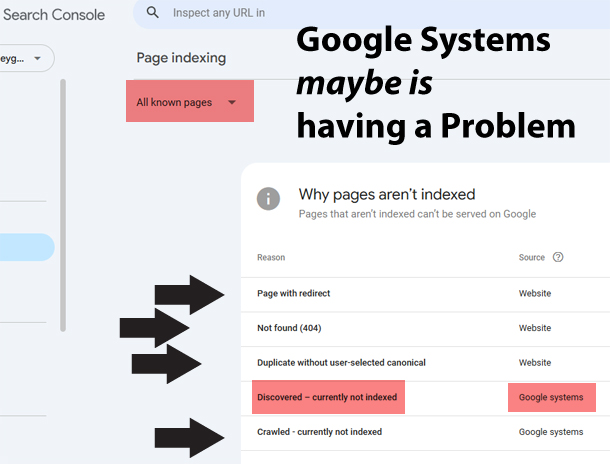 When you analyze Page Indexing Report. All known pages suggests Google systems maybe having issues in terms of technical setup of the website.

When you analyze Page Indexing Report. All errors for All submitted pages definitely tells you why Google systems are having problems with the website. These must be fixed before Google can index the URLs on a website. For example: redirect errors, canonical url issues, robots.txt issues.
Basically, once the technical side of the website is improved, if Google systems still do not index web pages, then:
2. Focus on Content Quality
If your technical setup is perfect but the issue persists, the problem is likely Content Quality. Google prioritizes high-quality, helpful information. If a page offers little value or is very similar to other content on the web, Google may choose not to index it.
The best way to resolve this is to review Google’s guide on creating helpful, reliable, people-first content. Improve the depth and usefulness of your pages to encourage Google to finalize the indexing process.
Make Your Most Important Content The Most Important
Google tries to mimic what real people see when they visit a website. In 2026, with advancement of Artificial Intelligence division of Google, search ranking algorithms are highly advanced to understand User Experience when they visit a typical web page.
What the above statement should tell you is, improve user page experience by ensuring that when people land on your web page, you present them with your most important content (Desktop or Mobile). For example: if your product URLs main feature is the HD images, then, make that visible in above the fold area. If your website features your YouTube videos, perhaps place that in above the fold area.
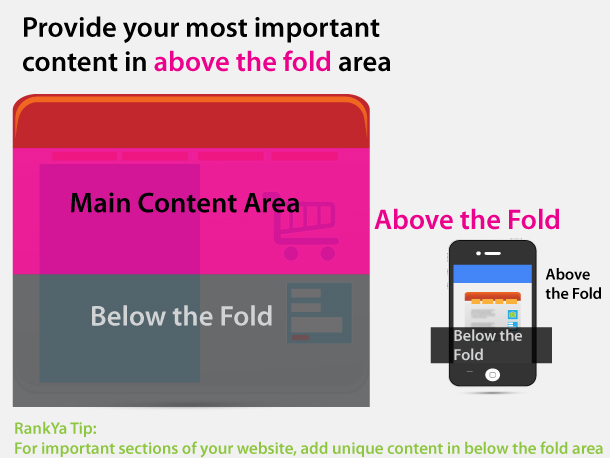
RankYa SEO Mastery Tip: for 99% of websites Google treats footer section as just a placeholder area. As in, all footer area information is identical throughout an entire website (including yours, right?). But you can and should change that for important sections of your website. For example: WordPress Category URLs or even blog post URLs, or even important pages or even Shopify Collection URLs, or any other URL can include unique content in the footer section. This will help Google to not treat those sections as just a placeholder areas, but rather, Google will discover that unique content, and as a result better index your website.
RankYa Google Mastery Tip: certain industries are highly competitive, despite all your efforts of Technical SEO and Quality Content publishing, Google may prolong its indexation of content. For example: website offering counsellor services, websites providing medical advice etc. etc. For certain topics that could significantly impact the health, financial stability, or safety of people, or the welfare or well-being of society, Google calls these “Your Money or Your Life” topics, or YMYL for short.
If your business website is within these categories, then, you must guide Google to better understand who is behind that content (you as the expert, or your business as the authority). You can do that by first creating sharable content and encourage others to share your content. Participate in online communities to share your expertise. For example: Facebook Melbourne Arts group, or reddit Windows 11 group, or LinkedIn etc. etc.
And to go one step further: you can and should interlink your online presence (using links). Then, either hire an expert in adding Schema Markup or at least use Plugins for Adding Structured Data (particular those that Google understands and uses which are called Rich Results).
Bonus Samples for precision noindex control
WordPress noindex examples for typical blog or local business website:
is_paged = paginated URLs of WordPress

is_page('notpublic') any web page that is private.
Got more private URLs? Use this format is_page('notpublic') || is_page('sample')
<?php if ( is_paged() ) : ?>
<meta name="robots" content="noindex, nofollow">
<meta name="Googlebot" content="noindex, nofollow">
<?php elseif ( is_page('notpublic') ) : ?>
<meta name="robots" content="noindex, nofollow">
<meta name="Googlebot" content="noindex, nofollow">
<?php elseif (is_single() || is_front_page() || is_page() || is_home() || is_category() ) : ?>
<meta name="robots" content="index, follow">
<meta name="Googlebot" content="index, follow, max-snippet:-1, max-image-preview:large, max-video-preview:-1">
<?php else : ?>
<meta name="robots" content="noindex, follow">
<?php endif; ?>
Shopify noindex examples:
You can safely place these in Theme > Code Edit > Layout > theme.liquid within the head section. For example:

Although Shopify CMS by default does a great job of ensuring correct URLs are indexed. If a Shopify Store is too large, managing “noindex” tags in Shopify Theme code is a smart way to prevent “Discovered – currently not indexed” issues, as it prevents Google from finding low-value or duplicate URLs in the first place.
Noindexing Filtered Collection URLs
When customers use filters (like color or size) on your collection pages, Shopify often generates URLs containing tags. These can create thousands of “duplicate” pages that thin out your crawl budget.
{% if collection.handle and current_tags %}
  <meta name="robots" content="noindex, follow">
{% else %}
  <meta name="robots" content="index, follow">
{% endif %}
Noindexing Paginated Pages (Page 2, 3, etc.)
While you want Google to find the products on deeper pages, you often only want the first page of a collection to rank in search results to keep your SEO authority concentrated.
{% if current_page > 1 %}
  <meta name="robots" content="noindex, follow">
{% else %}
  <meta name="robots" content="index, follow">
{% endif %}
RankYa Pro Tips for Shopify Indexing
Variant URLs: By default, Shopify usually handles variants via canonical tags pointing to the main product URL. If you find specific variant URLs are causing issues, you can use {% if product.url contains ‘variant=’ %} to target them.
Search Pages: It is a best practice to always keep template contains ‘search’ set to noindex as these pages provide little value to search engines and can be seen as “thin content”.
Consistency: Always ensure that if you are noindexing a page, you aren’t also sending it to Google in your XML sitemap, as this can send conflicting signals to Google Systems.
Frequently Asked Questions
What does "Discovered - currently not indexed" actually mean?
Google has found the URL (for example, via a sitemap or external link) but has not yet crawled or indexed it, often because Google decided to prioritize other pages due to crawl budget limitations, perceived low value, or a temporary backlog in processing.
Can images or PDFs be affected by this indexing issue?
Yes, images and PDFs can also be affected by this indexing issue. If Google discovers an image or PDF file but considers it low-quality, non-unique, or not valuable enough to users, it may leave the file in a "discovered - currently not indexed" state just like a regular web page.
How do Google's algorithms affect my page indexing?
Google's algorithms affect page indexing by evaluating factors such as content quality, uniqueness, relevance, and site authority. If an algorithm determines that a page is thin, duplicate, or otherwise low-value compared to already‑indexed content, it may deprioritize or even skip crawling and indexing that page entirely.
What technical issues should I check first?
The first technical issues to check are: robots.txt disallowing crawling, a noindex meta tag or X‑Robots‑Tag, incorrect canonical tags pointing to another URL, broken or slow server responses (4xx/5xx errors), and improper XML sitemap configurations that might mislead Google's crawlers and as a result Google systems deciding not to index the content.
If my technical setup is correct, why is my content still not indexed?
If your technical setup is correct, content may still not be indexed due to many factors. For example: Google algorithms believe that people don't search for that kind of content. Or, because content lacks sufficient quality or unique value, has very low internal or external link authority, is isolated from the site's main structure, or simply does not meet Google's quality guidelines for inclusion in the index.
