
Microsoft’s Copilot is now a core part of the Windows 11 (all versions including Pro) although a simple toggle can hide it from the taskbar, taking a few extra steps can remove it more thoroughly from your Windows operating system so that the AI function does not return each time you login. This guide shows you the most effective methods to get rid of it for good.
Video Tutorial: How-to Completely Disable & Get Rid of Microsoft Copilot AI
How-to Turn Off Microsoft Copilot using the Group Policy Editor

If you are using Windows 11 Pro, Enterprise, or Education, you have access to the Group Policy Editor. This tool provides a straightforward way to disable Copilot, and many users find it more user-friendly than editing the registry.
Step-by-Step Instructions
- Open the Group Policy Editor by searching for gpedit.msc or typing Edit Group Policy in the Start Menu.
- Navigate through the folders in the left-hand panel using this path:
User Configuration > Administrative Templates > Windows Components > Windows Copilot - Once you select the Windows Copilot folder, look to the right-hand panel.
- Find and double-click on the setting named Turn off Windows Copilot.
- In the new window that appears, select the Enabled option.
- Click Apply and then OK to save the change.
After completing these steps, you will need to restart your computer for the change to take effect.
How-to Completely Get Rid of Copilot AI with the Registry Editor
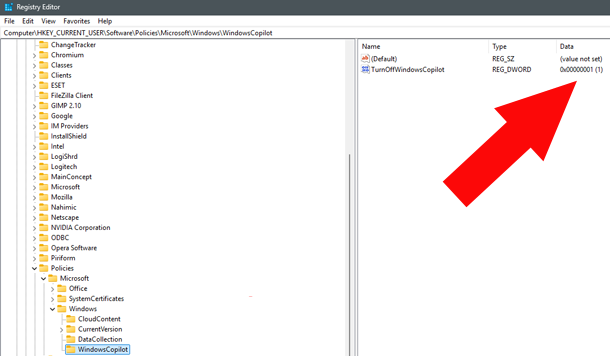
For those who have tried other tutorials to no avail, editing the Windows Registry is the most reliable method to get rid of deep-seated copilot ai functions. The Windows 11 Registry is a powerful database for Windows core settings, so it is vital to follow these instructions carefully.
IMPORTANT: Before you edit the Windows Registry, “Create a Restore Point” to back up your Windows Installation Drive. Also, export your current Windows Registry settings via File > Export. Because you can always import the current settings if something doesn’t go as planned.
Good to know for power users: Microsoft Windows OS Registry DWORD 32-bit values work like this: 1 = TRUE (Enabled) and 0 = FALSE (Disabled).
Registry Path: WindowsCopilot
- Open the Registry Editor by searching for regedit in the Start Menu and running it as an administrator.
- In the address bar at the top, paste the following path and press Enter:
HKEY_CURRENT_USER\SOFTWARE\Policies\Microsoft\Windows
- Look for a folder (Key) called WindowsCopilot.
- If it exists, ensure the TurnOffWindowsCopilot value data is set to 1.
- If you do not see the WindowsCopilot folder:
- Right-click on the Windows folder, select New > Key, and name it WindowsCopilot.
- Inside this new key, right-click the right panel, select New > DWORD (32-bit) Value.
- Name it TurnOffWindowsCopilot and set its value to 1.
Registry Path: WindowsAI (Data Analysis)
Since you are already in the Registry Editor, you should also disable background communication with Microsoft Servers for AI data analysis. Navigate to:
HKEY_CURRENT_USER\SOFTWARE\Policies\Microsoft\Windows
- If the WindowsAI key is missing, create it by right-clicking Windows > New > Key.
- Inside WindowsAI, create a new DWORD (32-bit) Value named DisableAIDataAnalysis.
- Double-click it and change the Value data to 1.
Force Stop Copilot Using Geographic Region Restrictions
Luckily for you, both Microsoft 365 Copilot and Windows 11 Copilot AI isn’t supported globally as there are restrictions for supported regions and languages for Copilot. What this means is that you can tweak this setting to remove it permanently.
If Copilot still appears after a restart (or after a Windows Update) you can use a “Geographic Region” flag to force the system to disable this service completely. In Registry Editor and navigate to:
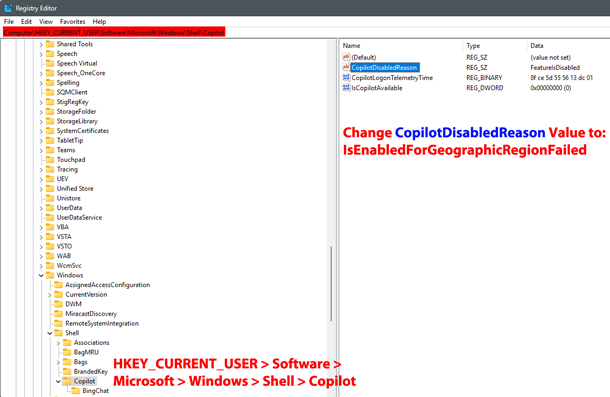
HKEY_CURRENT_USER\Software\Microsoft\Windows\Shell\Copilot
- Find the string CopilotDisabledReason. You will see data “FeatureIsDisabled”. Double-click CopilotDisabledReason and change the value data to: IsEnabledForGeographicRegionFailed
- Ensure that IsCopilotAvailable (DWORD) is set to 0.
Check System AI Components and Edge Settings
With the latest Windows 11 updates as well as Microsoft Office products, Microsoft has integrated AI components directly into the system settings. To ensure you have fully cleaned your system:
Uninstall System AI Components
- Go to Settings > System > AI Components.
- Search for Copilot in the list.
- Investigate the installed components and select Uninstall for those you do not use.
Disable Copilot in Microsoft Edge
Even if disabled in Windows, Copilot may still linger in your browser if you’re using Edge browser. Open Edge and follow these steps:
- Sidebar: Go to Settings > Appearance > Copilot and sidebar > Copilot. Toggle Show Copilot button on toolbar to OFF.
- AI Innovations: Go to Settings > AI Innovations. Toggle Copilot Mode to OFF.
By following these methods, you will successfully get rid of the AI integrations and return to a traditional Windows 11 experience back in your control.
Frequently Asked Questions
Why should I use the Group Policy Editor instead of just hiding the Copilot button?
Hiding the Copilot button only removes the icon from the taskbar, but Copilot still runs in the background, the Win+C shortcut still works, and it can return after Windows cumulative update. The Group Policy Editor disables the feature at the system policy level, preventing it from starting at all and ensuring it stays off permanently across reboots.
What is the benefit of modifying the WindowsAI Registry key for data privacy?
The WindowsAI key controls whether Windows can send your usage data to Microsoft's AI servers for analysis. By adding the "DisableAIDataAnalysis" DWORD and setting it to 1, you block all AI-related telemetry from leaving your computer, protecting your privacy and preventing Copilot from communicating with Microsoft's backend systems.
How does the "IsEnabledForGeographicRegionFailed" value help get rid of Copilot?
This value tricks Windows into thinking your region does not support Copilot (similar to countries where Microsoft hasn't launched the feature yet). When Windows sees this "region failed" flag, it stops trying to load or enable Copilot altogether, effectively killing the AI assistant at the shell level without needing to block it through other means.
Why is it important to check the "AI Components" section in Windows 11 Settings?
Windows 11 updates often install hidden AI components that can re-enable Copilot or related features even after you disable it. The "AI Components" section shows these installed pieces so you can uninstall them manually, preventing future updates from bringing Copilot back without your permission.
Why should a power user set the Registry DWORD to 1 to disable a feature?
In Windows Registry, DWORD values follow a boolean logic where 1 equals TRUE (enabled) and 0 equals FALSE (disabled). For disable features like "TurnOffWindowsCopilot", setting the DWORD to 1 means "TRUE that the feature should be turned off" this is the standard Microsoft convention for disabling policies, ensuring the Registry interprets your system instruction correctly.
