
If you are a content creator, freelancer, or just a everyday Windows user, you want your operating system to run fast. Whether you’re running on older hardware or a high-end machine, background bloatware, unnecessary animations, and misconfigured settings can drastically slow you down. In fact, most Microsoft Windows 11 users don’t realize how slow their machine is until they tweak it for best performance.
This guide walks you through every proven method to make Windows 11 fast again from removing bloatware to optimizing virtual memory and even tuning Wi-Fi 7 for maximum speed (these insights will work for Windows 11 Home > Pro > Enterprise Editions).
- Video Tutorial: How-To Speed Up Windows 11: Advanced Optimization (Part 1)
- Video Tutorial: How-To Speed Up Windows 11: Advanced Optimization (Part 2)
- 1. Debloat via Apps and Features
- 2. Disable Unnecessary Startup Apps
- 3. Adjust Visual Effects for Performance
- 4. Storage Sense and Temporary File Cleanup
- 5. Optimize Power Settings
- 6. Wi-Fi 7 Optimization (For Supported Hardware)
- 7. Adjust Virtual Memory (Paging File) for Better Performance
- Final Tips to Keep Windows 11 Fast As Possible
Video Tutorial: How-To Speed Up Windows 11: Advanced Optimization (Part 1)
Video Tutorial: How-To Speed Up Windows 11: Advanced Optimization (Part 2)
1. Debloat via Apps and Features
Pre-installed software (bloatware) can run hidden background services that drain resources.
- Go to Settings > Apps > Installed apps.
- Review the list and uninstall any pre-installed games, trial software, or utility tools you do not use.
- For a deeper clean, check Settings > Privacy & security > Background apps (if available on your build) to prevent specific apps from refreshing data while not in use.
2. Disable Unnecessary Startup Apps
Many applications set themselves to launch automatically when Windows boots, which consumes CPU and RAM from the moment you turn on your PC.
- Right-click the Start button and select Task Manager.
- Click the Startup apps tab on the left sidebar.
- Identify apps you don’t need immediately (such as Spotify, Steam, or browser assistants), right-click them, and select Disable.
3. Adjust Visual Effects for Performance
Windows 11 uses various animations and transparency effects that can tax the GPU and system memory on some hardware.
- Press the Windows Key, type “Adjust the appearance and performance of Windows”, and press Enter.
- In the Performance Options window, select “Adjust for best performance”.
- Alternatively, keep “Smooth edges of screen fonts” checked to maintain text readability while disabling heavy animations.
4. Storage Sense and Temporary File Cleanup
Low disk space can significantly slow down system operations, especially during updates or while caching data.
- Go to Settings > System > Storage.
- Toggle on Storage Sense to automatically delete temporary files and empty the Recycle Bin on a schedule.
- Click on Temporary files to manually select and remove large “Windows Update Cleanup” files or previous installation data.
5. Optimize Power Settings
By default, Windows often uses a “Balanced” power plan to save energy, which may throttle the CPU during intensive tasks.
- Go to Settings > System > Power & battery.
- Locate Power mode and change the dropdown selection to Best performance.
- Note: This is particularly effective for desktop PCs or laptops that are plugged into a power source.
6. Wi-Fi 7 Optimization (For Supported Hardware)
Wi-Fi 7 is a newer standard, and performance often depends on having the latest firmware.
- Right-click the Start button and select Device Manager.
- Expand Network adapters, right-click your Wi-Fi 7 card (e.g., Intel Wi-Fi 7 BE200), and select Update driver.
- If Windows doesn’t find one, visit the manufacturer’s website directly to download the latest “BE” series driver.
Configure “802.11be” Mode in Device Manager
You can tell your hardware to prefer the Wi-Fi 7 protocol over older standards like Wi-Fi 6 or 6E.
- In Device Manager, right-click your Wi-Fi 7 adapter and select Properties.
- Go to the Advanced tab.
- Look for a property named 802.11n/ac/ax/be Wireless Mode or Ultra High Band (6GHz).
- Ensure the value is set to 802.11be or the highest available option.
- Find Preferred Band and set it to Prefer 6GHz band to ensure it stays on the widest available channel.
Only have Wi-Fi 6? Select 802.11ax in Wireless Mode. Preferred Band 5GHz
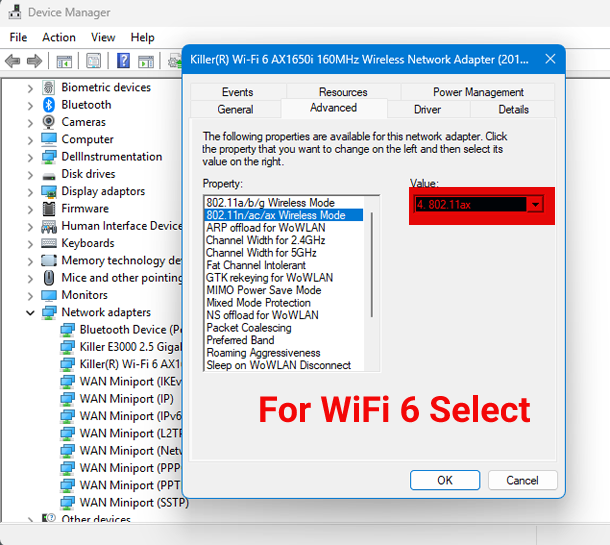
NOTE: To actually see the benefits of the optimized wireless settings, your Router must also match and support extreme speeds (up to 19Gbps+), lower latency, and 320 MHz bandwidth, designed for seamless 4K/8K streaming and gaming.
7. Adjust Virtual Memory (Paging File) for Better Performance
Adjusting your Virtual RAM (also known as the Paging File) can help if you frequently run out of physical memory.
- Press the Windows Key, type
sysdm.cpl, and hit Enter. - Go to the Advanced tab.
- Under the Performance section, click Settings.
- In the new window, click the Advanced tab.
- Under Virtual memory, click Change.
- Uncheck “Automatically manage paging file size for all drives”.
- Select your Windows drive (usually C:), then choose Custom size.
- Use the table below as a guideline, then click Set and OK. Restart your PC.
| Installed RAM | Initial Size (MB) | Maximum Size (MB) |
|---|---|---|
| 8 GB | 12,288 | 24,576 |
| 16 GB | 24,576 | 49,152 |
| 32 GB | 49,152 | 98,304 |
Final Tips to Keep Windows 11 Fast As Possible
- Keep Windows updated because performance fixes are often included in cumulative updates.
- Run Disk Cleanup as an administrator to remove system files like old Windows update backups.
- Consider disabling transparency effects separately under Settings > Personalization > Colors > Transparency effects.
Check to See If TRIM is Actually Enabled in Windows 11 Using Command Prompt
If you have an SSD, make sure TRIM is enabled (it usually is by default) by running Command Prompt (or PowerShell) as administrator.
Step 1: Check TRIM Status via Command Prompt This is the fastest method to verify the communication between Windows 11 and your SSD controller.
- Press the Windows Key, type cmd, right click to select ‘Run as Administrator’.
- In the black window, type (or copy/paste) the following command and press Enter:
fsutil behavior query DisableDeleteNotify
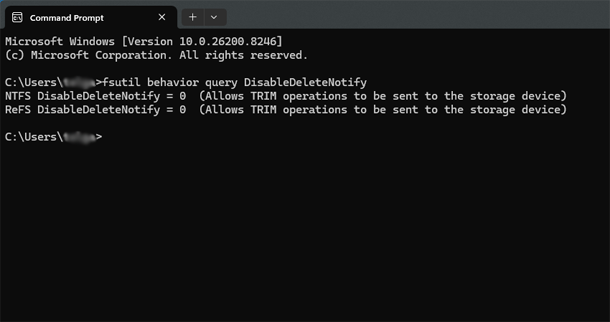
How-to Interpret the Results:
- DisableDeleteNotify = 0: TRIM is Enabled (This is what you want).
- DisableDeleteNotify = 1: TRIM is Disabled.
Note for M.2 SSD NVMe Users: If you have an NVMe drive, you might see results for both “NTFS” and “ReFS” as long as the volume type you are using (usually NTFS) shows 0 value, you are good to go.
How to Enable TRIM (If it’s Disabled). If your result was 1, Windows is not sending TRIM commands to your drive. You can force it on with this Command Prompt:
fsutil behavior set DisableDeleteNotify 0
Press Enter. You should see a confirmation that the behavior has been set.
Verify “Optimize Drives” Schedule. Windows 11 handles TRIM through the “Optimize Drives” utility. Even if the status is enabled, you should ensure the schedule is active. 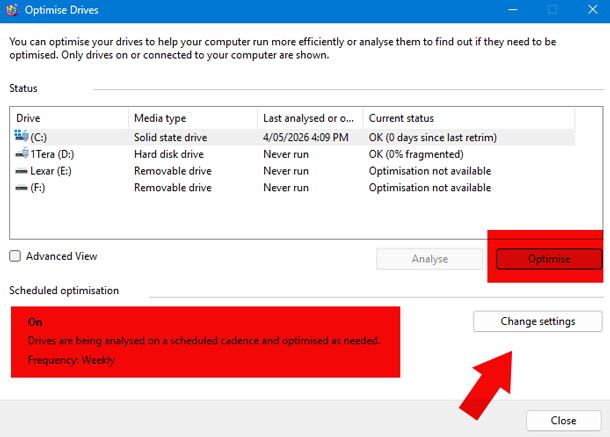
- Search for Defragment and Optimize Drives in the Start Menu.
- Look at the Media type column to ensure your drive is recognized as a Solid state drive.
- Check the Scheduled optimization section. It should say On.
- If it is off, click Change settings and set it to Daily/Weekly/Monthly. This ensures Windows periodically sends the “Retrim” command to clean up unused blocks.
By following these basic and power-user optimization techniques, from debloating and disabling startup apps to optimizing power settings and virtual memory, you can dramatically speed up Windows 11 and keep it running fast for years to come.
Frequently Asked Questions
Will disabling background apps and startup programs affect my Windows 11 notifications?
Disabling background apps and startup programs generally does not break critical notifications like email, calendar, or messaging alerts because those rely on system-level services that remain active.
However, if you disable a specific app's background permission (e.g., WhatsApp, Spotify, or a news app), that individual app may stop sending you push notifications until you open it again. Startup programs only affect what launches when you boot your PC; disabling them has no effect on notifications once the app is running manually.
To be safe, only disable non-essential apps you don't need real-time updates from.
Does adjusting virtual memory (Paging File) actually improve performance if I already have 32GB of RAM?
With 32GB of RAM, manually adjusting the paging file provides little to no performance gain for most users because Windows rarely needs to use disk-based virtual memory when physical RAM is abundant.
However, there are two exceptions: if you run extreme memory-intensive applications (like large virtual machines, 3D rendering, or massive databases), or if an application specifically requires a large paging file regardless of free RAM.
For typical gaming, web browsing, and office work, leaving virtual memory on "automatically manage" is perfectly fine. Setting a custom size won't hurt, but don't expect a noticeable speed boost.
How often should I run the fsutil command to check if TRIM is enabled?
You only need to run fsutil behavior query DisableDeleteNotify once to verify TRIM is enabled for your SSD. If the result shows 0, TRIM is active and Windows will automatically maintain it in the background.
Re-checking every few months is unnecessary unless you suspect a major driver or firmware issue. Instead of repeatedly querying TRIM, focus on running the Optimize Drives tool (formerly defrag) once a week because Windows automatically TRIMs SSDs during that process. Over-checking the fsutil command adds no benefit.
Is it safe to completely disable all Windows 11 visual effects and animations?
Yes, it is completely safe to disable all visual effects and animations in Windows 11. Selecting "Adjust for best performance" in the Performance Options window turns off features like fade effects, shadows, animations, transparency, and taskbar thumbnails.
This will not break any core functionality or cause system errors. The only downside is a more "basic" visual appearance windows will snap instantly instead of fading, the Start menu won't animate, and some UI elements look flatter.
For older PCs or performance-focused users, this trade-off is well worth the speed increase. You can always revert by selecting "Let Windows choose what's best for my computer."
Why isn't my Wi-Fi 7 adapter reaching maximum speeds even after updating the drivers?
Several factors can prevent your Wi-Fi 7 adapter from hitting top speeds even with updated drivers. These can include:
- You need a Wi-Fi 7 router using a Wi-Fi 6/6E or older router will cap speeds.
- The 6GHz band must be enabled on both your router and adapter; go to Device Manager > Advanced tab and set "Preferred Band" to "Prefer 6GHz".
- Interference and distance matter: Wi-Fi 7's highest speeds require close proximity with minimal walls. Fourth, check that your router's channel width is set to 320MHz (the maximum for Wi-Fi 7).
Finally, your internet plan itself may be the bottleneck, even a perfect internal network can't exceed what your ISP provides. Run a local speed test between two devices on the same network to isolate whether the issue is your internet connection or the Wi-Fi 7 link itself.
My Network Adapter is WiFi 6 What is the Best Setting?
802.11ax is the official IEEE technical standard for Wi-Fi 6. By selecting this option, you are unlocking the maximum capabilities of your network card inside your Windows 11 machine.
Compared to the older standards like 802.11ac (Wi-Fi 5) and 802.11n (Wi-Fi 4) the "ax" protocol delivers 3 major advantages:
- Higher Maximum Throughput: It allows for significantly faster data transfer rates, making large file downloads and network rendering much faster.
- Lower Latency: It drastically reduces network ping and lag spikes, which is crucial for a high-end machines like an Dell Alienware Area 51.
- Better Congestion Management: It uses a technology called Orthogonal Frequency-division Multiple Access (OFDMA), which means if you have multiple phones, Google TV, and smart devices connected to your network, your PC will not get starved for bandwidth.
