CRITICAL WARNING: The following steps, specifically the Clean Install process, will PERMANENTLY DELETE all data on your primary hard drive. You must BACKUP ALL IMPORTANT DATA (photos, web projects, PHP files, Adobe assets) to an external drive or cloud storage before proceeding. RankYa is not responsible for data loss.
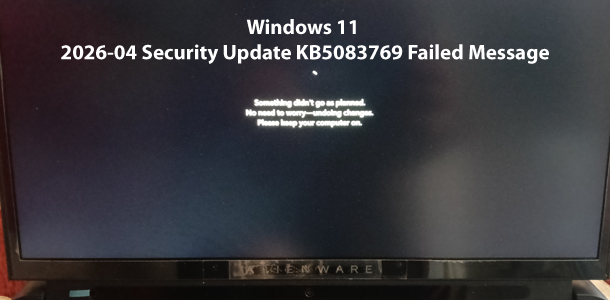
If you are repeatedly seeing the error message “Something didn’t go as planned. No need to worry. Undoing changes made to your computer” after trying to install the April 2026 Security Update (KB5083769), you are not alone. This specific update often fails with error 0x800f0922 due to architectural “tech debt” usually caused by mismatched OS versions (Windows 10 upgraded to free Windows 11, Home vs. Pro vs. Enterprise ghosts), a choked 100MB EFI partition, or TPM/BitLocker binding failures.
Step 1: The “Gold Standard” Fix – Clean Windows 11 Reinstall
Instead of fighting update failures due to registry mismatched “ghosts” and tiny partitions for hours, or when manual installation doesn’t work, a clean reinstall is the most efficient and stable solution. This resets your partition architecture, ensuring your EFI partition is correctly sized for future security requirements.
1.1 Preparation & Backup
- Perform a Full Backup: Ensure every single work file is safely off the machine.
- Create Bootable Media: Use the Windows 11 Media Creation Tool to prepare a USB drive.
- Pro Tip (The Version Fix): To force the installer to show “Windows 11 versions” so that you can select the correct one according to your licence (for example windows 11 pro) create a text file named ei.cfg and place it in the Sources folder of your USB. Inside the file, type & save:
[Channel]

_Retail
1.2 The “Nuke” and Partition Reset
- Boot from your USB (typically by tapping F12, F2, or DEL during startup).
- Select Custom: Install Windows only (advanced).
- CRITICAL STEP: Select every existing partition on your primary OS drive and click Delete until only “Drive 0 Unallocated Space” remains.
- Click Next. Windows will now create a fresh, properly aligned EFI partition that can handle the KB5083769 update.
1.3 Final Setup & Verification
- Log in with your Microsoft Account to reactivate your Digital License.
- Go straight to Settings > Windows Update. The KB5083769 update will now install flawlessly.
Alternative Troubleshooting Options (If a Clean Install is Not Possible)
If you absolutely cannot perform a clean install yet, try these surgical troubleshooting steps to resolve the update conflict manually.
Video Tutorial: How-to Install Windows 11 2026-04 Security Update KB5083769 Manually
Option A: Manual “Double-Patch” Installation
KB5083769 often has dependencies. Download both kb5043080 (the prerequisite) and KB5083769 from the Microsoft Update Catalog. Execute them together via Command Prompt (Admin):
wusa.exe "C:\updates\windows11.0-kb5043080-x64.msu" /quiet /norestart && wusa.exe "C:\updates\windows11.0-kb5083769-x64.msu" /quiet /promptrestart
Option B: Clearing the EFI Partition “Choke Point”
If you see error 0x800f0922, your 100MB System Reserved partition is likely full. You can manually free up space by deleting unused language fonts:
Open Command Prompt or PowerShell (Run as Administrator) and type:
mountvol y: /s
Navigate to the drive:
y: then cd EFI\Microsoft\Boot\Fonts
Delete all files using the below code (This frees up ~15MB, often enough to allow the patch to “breathe”).
del *.*
Option C: Repairing BitLocker & TPM Bindings
If your system cannot bind the update to the TPM chip, it will roll back. Even if you don’t use encryption, ensure your system sees the “Key Protectors”:
- Open Command Prompt or PowerShell (Run as Administrator) and run:
- If no protectors are listed, the update will fail for security reasons. A clean install (Step 1) is the most reliable way to reset these hardware bindings.
manage-bde -protectors -get C:
Video Tutorial: How-to Troubleshoot and Fix Windows 11 Update KB5083769 Not Installing Issues
STEP 1: SECURE DATA
Backup your projects and assets. Create your USB installer using the Media Creation Tool.
STEP 2: THE NUKE
Boot from USB. Delete all partitions until you have one single block of Unallocated Space.
STEP 3: RE-SYNC
Login to your Microsoft Account. Run Windows Update and watch KB5083769 install perfectly.
Published by RankYa | Web Development & Google Product Specialized Blogger
“Simplifying complex Windows and Web issues for over 10+ years.”
