Tried other how-to tutorials to no avail for disabling Copilot AI from your Windows 11 Operating System?
Video Tutorial: How-to Completely Disable & Get Rid of Microsoft Copilot AI
Microsoft’s Copilot is now a core part of the Windows 11 experience, but not everyone finds this AI assistant useful. If you want to completely disable and turnoff Microsoft Copilot AI, you are in the right place. While a simple toggle can hide it from the taskbar, taking few extra steps can remove it more thoroughly from your Windows operating system so that AI function does not return each time you login to Windows 11. This blog post shows you effective methods to remove it completely.
How-to Turnoff Microsoft Copilot using the Group Policy Editor
If you are using Windows 11 Pro, Enterprise, or Education, you have access to the Group Policy Editor. This tool provides another straightforward way to disable Copilot, and some users may prefer it instead of editing the registry.
Step-by-Step Instructions
- Open the Group Policy Editor by searching for ‘gpedit.msc’ or type to open ‘Edit Group Policy’ in the Start Menu.
- Navigate through the folders in the left-hand panel using this path
User Configuration > Administrative Templates > Windows Components > Windows Copilot
- Once you select the ‘Windows Copilot’ folder, look to the right-hand panel.
- Find and double-click on the setting named “Turn off Windows Copilot”.
- In the new window that appears, select the ‘Enabled‘ option.
- Click ‘Apply’ and then ‘OK’ to save the change.

After completing any of these steps, you will need to restart your computer for the change to take effect.
How-to Completely Get Rid of Copilot AI with the Registry Editor
For those who tried other methods to no avail removing Copilot, editing the Windows Registry is also a reliable method. The Registry is a powerful database for Windows settings, so it’s important to follow these instructions carefully.
IMPORTANT: before you edit the Windows Registry, “Create a Restore Point” to backup your Windows Installation Drive. Also, export your Windows 11 registry.
Good to know for power users: Microsoft Windows OS registry DWORD 32-bit value works like this: 1 = TRUE and 0 = FALSE
Step-by-Step Instructions
- Open the Registry Editor by searching for ‘regedit’ in the Start Menu and running it as an administrator.
- NOTE: you can backup your current Registry settings. Go to File > Export > save file as “Registration Files (*.reg):
- In the address bar at the top, paste the following path and press Enter
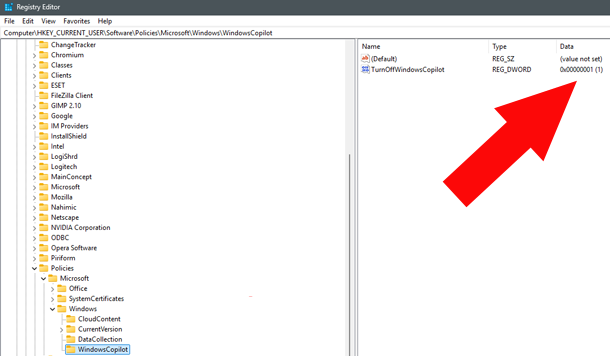
HKEY_CURRENT_USER\SOFTWARE\Policies\Microsoft\Windows
- Latest Windows 11 2026 update has a folder called WindowsCopilot.
- ‘TurnOffWindowsCopilot’ value data must be set to 1
- (if it isn’t, double tap the Name ‘TurnOffWindowsCopilot’ and change value data to be 1.
IF YOU DO NOT SEE these Registry Keys, follow these steps:
- If you do not see a folder called WindowsCopilot. Then, right-click on the ‘Windows’ folder in the left-hand panel.
- Select New then choose Key.
- Name this new key ‘WindowsCopilot’ and press Enter.
- Click on the new ‘WindowsCopilot’ key you just created.
- In the empty panel on the right, right-click, select New, and choose DWORD (32-bit) Value.
- Name this new value ‘TurnOffWindowsCopilot’ and press Enter.
- Double-click on ‘TurnOffWindowsCopilot’, change its ‘Value data’ from 0 to 1, and click OK.
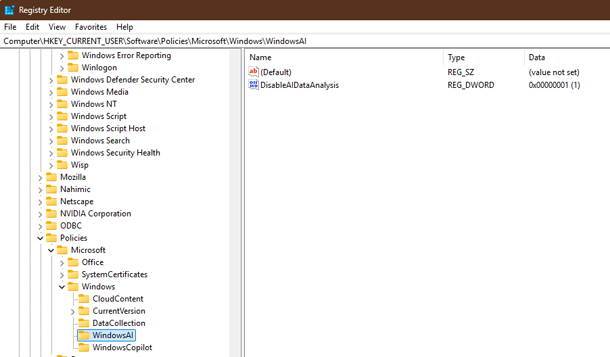
 Next, WindowsAI folder can be used to disable communication with Microsoft Servers for data analysis. Since you are in the Registry Editor, simply get rid of this communication as well.
HKEY_CURRENT_USER\SOFTWARE\Policies\Microsoft\Windows\WindowsAI
- If you do not see a folder called WindowsAI. Then, right-click on the ‘Windows’ folder in the left-hand panel.
- Select New then choose Key.
- Name this new key ‘WindowsAI’ and press Enter.
- Click on the new ‘WindowsAI’ key you just created.
- In the empty panel on the right, right-click, select New, and choose DWORD (32-bit) Value.
- Name this new value ‘DisableAIDataAnalysis’ and press Enter.
- Double-click on name REG_DWORD ‘DisableAIDataAnalysis’, change its ‘Value data’ from 0 to 1, and click OK.
After completing these steps, you will need to restart your computer for the change to take effect.
Copilot should now be completely turned off. If it isn’t you can force it to stop.
How-to Force Stop Copilot with the Registry Editor Using IsEnabledForGeographicRegionFailed
- Open the Registry Editor by searching for ‘regedit’ in the Start Menu and running it as an administrator.
- In the address bar at the top, paste the following path and press Enter
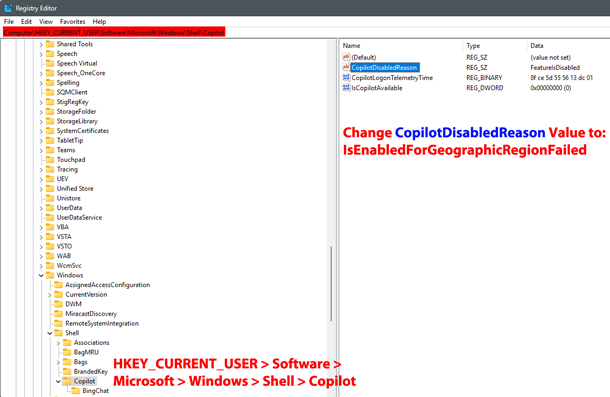
HKEY_CURRENT_USER\Software\Microsoft\Windows\Shell\Copilot
- You will see CopilotDisabledReason. Double Click and Change its value data to “IsEnabledForGeographicRegionFailed”
- Make sure you’re also seeing: IsCopilotAvailable REG_DWORD is Set to 0 (if its set to 1 change it to 0)
Since Microsoft Corporation is moving towards making Artificial Intelligence part of Windows Operating System by integrating AI Apps and Components, you may want to triple check your System.
Uninstall > System > AI Components

The latest Windows 11 updates may have installed other AI Components depending on how you’re using your Windows OS
- Go to Settings > System > AI Components
- Search for “Copilot”
- Investigate Installed AI Components
- Uninstall AI Components According to Your Usage
Microsoft Edge: Disable Copilot Sidebar
 Open Edge and go to Settings > Appearance > Copilot and sidebar > Copilot > Toggle Show Copilot button on toolbar to OFF
Microsoft Edge: AI Innovations
Open Edge and go to Settings > AI Innovations > TOGGLE Copilot Mode to OFF
Frequently Asked Questions
Is turning off Copilot from the taskbar enough?
Hiding the icon from the taskbar only removes the shortcut. The Copilot process may still run in the background. The Registry and Group Policy methods described above actually disable the feature itself, which is a more complete solution for users who do not want it at all.
Will editing the Windows Registry to remove copilot harm my computer?
Editing the registry is safe as long as you backup your current registry settings and follow the instructions precisely. Making incorrect changes can cause system instability, so it's important to only modify the specific keys and values mentioned in the above blog post. If you are not comfortable, the Group Policy method is a good alternative for supported Windows versions.
Can I get Copilot back if I change my mind?
Yes, you can easily re-enable Copilot. To reverse the registry edit, simply navigate back to the 'TurnOffWindowsCopilot' value and change its data from 1 back to 0, or delete the 'WindowsCopilot' key entirely. For the Group Policy method, you would set the "Turn off Windows Copilot" policy back to 'Not Configured' or 'Disabled'. Remember to restart your computer after making any changes.
Why might one of these methods not work for me?
The Group Policy Editor ('gpedit.msc') is not available on Windows 11 Home editions. If you have Windows 11 Home, you must use the Registry Editor method. For all other versions, both methods should work effectively, though system updates can sometimes alter how these settings behave.
What is the difference between the Registry and Group Policy methods?
Both methods achieve the same goal of disabling Copilot. The Registry Editor directly modifies the system's configuration database. The Group Policy Editor is a more user-friendly interface that modifies the registry for you. It's generally considered a safer approach for managing system policies if you have a compatible version of Windows.

Thanks for this helpful guide I was looking for a way to disable Microsoft Copilot in Windows 11, and your step-by-step instructions made it easy to follow. I appreciate the video walkthrough really help clarify the process.
Happy to help since Microsoft keeps moving settings around or re-starting copilot with each update, so I figured a thorough guide was a must. Glad you were able to disable it.
Thanks for the clear instructions for disabling Microsoft Copilot. Mine kept coming back each time I logged in to Windows 11 pro but your reg edit info made sure it got rid of copilot ai from running each time. Thanks again.
Good to hear it worked for your machine. Definitely check out the latest videos regarding Windows 11 performance optimization tips by RankYa 🙂
Thank you for this detailed guide! I was getting quite frustrated with Microsoft Copilot, but your step-by-step instructions made it easy to disable. I appreciate the clear explanations and screenshots—super helpful!
This worked disabling Microsoft Copilot (Windows 11 pro) thank you. Quick question “will it come back after an update?”
Hi Andrew, the short answer is NO Copilot will not come back when you disable it. But who can be 100% certain when it comes to Microsoft Windows. If after an update you still see the annoying copilot ai feature, simply repeat these instructions to remove windows copilot feature.