
It can be frustrating when you’re trying to set up your site and run into a roadblock. One of the most common issues people face is the message about pending or invalid nameservers.

If you’re seeing this issue, don’t worry. This guide will show you exactly how-to fix the Cloudflare invalid nameservers errors fastest way possible. The problem is almost always a small misconfiguration at your domain registrar, and the solution is usually very straightforward.
Video Tutorial for Fixing Cloudflare Invalid Nameservers Errors
Why Does This Error Happen?
This error simply means that Cloudflare is trying to check your domain’s nameservers with the official domain registry, but the nameservers it finds don’t match the ones it assigned to your account. It’s a communication breakdown. Let’s go through the checklist to fix it.
Step 1: Double-Check the Nameserver Entries
The simplest mistakes are often the cause. Go back to your domain registrar’s DNS control panel and carefully compare the nameservers you entered with the ones Cloudflare provided.
Check for Typos and Extra Spaces
Even a single wrong letter or a space at the end of the nameserver address will cause the check to fail. The best practice is to copy the nameservers directly from your Cloudflare dashboard and paste them into the fields at your registrar. Do not type them manually.
Ensure Old Nameservers are Removed
You should only have the two nameservers provided by Cloudflare in your domain’s settings. Make sure you have completely removed any old nameservers from your hosting provider or from the registrar itself. Having a mix of different nameservers will confuse the system and prevent activation.
GoDaddy Domain Nameserver Change Option:
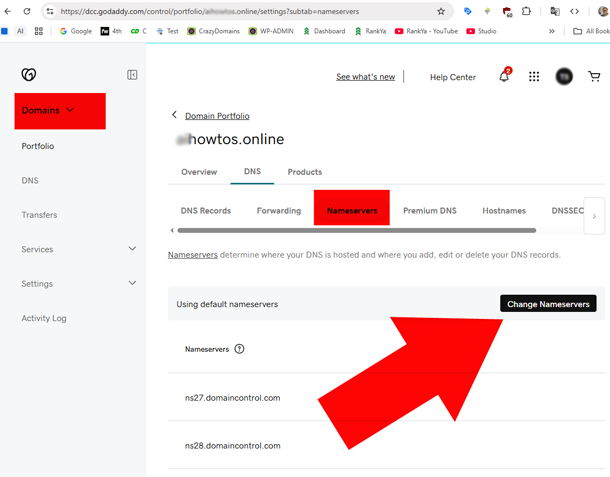 Crazy Domains Domain Nameserver Change Option:

After you save your changes on your domain registrar account, it can take some time for the change to become active across the internet. This is called DNS propagation and can take anywhere from a few minutes to 24 hours, though it is usually quite fast.
Step 2: Disable DNSSEC at Your Domain Registrar
This is the most common reason for the invalid nameservers error. DNSSEC is a security extension that protects against certain types of online fraud. While it is a good feature, it must be disabled at your domain registrar *before* you can switch your nameservers to Cloudflare. Note: this may be Premium DNS option and not available to everyone unless yours has this option.
- Log in to your domain registrar’s dashboard.
- Look for a section named ‘DNSSEC’ or within your ‘DNS Management’ or ‘Domain Security’ settings.
- If DNSSEC is enabled, you must disable it.
- Save your changes.
Once DNSSEC is turned off, the nameserver change can proceed correctly. You can enable a new DNSSEC configuration within the Cloudflare dashboard (DNS Settings) after your site is active.
Step 3: Make Sure Your Domain Is Not Locked
Most domain registrars provide a feature called ‘Domain Lock’ or ‘Registrar Lock’. This is a security setting that prevents unauthorized transfers or changes to your domain, including nameserver updates. If this lock is active, your registrar will reject the nameserver change.
Check your domain’s settings for this feature. If it’s on, simply toggle it off, save the settings, and then try updating your nameservers again.
Step 4: Wait and Re-Check
The internet doesn’t update instantly. When you change your nameservers, that information has to be updated across servers all over the world. This process is called DNS propagation.
How Long Does It Take?
While some registrars are very fast, propagation can sometimes take a few hours, and in rare cases, up to 24 hours. It’s a good idea to wait for at least an hour after making your changes before getting concerned.
How-to Speed-Up DNS Propagation

Open Windows Command Prompt (Search Windows Search Box with CMD) and run these commands:
- ping yourwebsite.com
- nslookup yourwebsite.com
- tracert yourwebsite.com
Use the Re-check Button

Cloudflare will periodically check for nameserver updates so you need not do anything for else. However, inside your Cloudflare dashboard, on the Overview page that says “Last step: Update your nameservers to activate Cloudflare”, there is a button when you scroll down the page that says ‘Check nameservers now’. You can click this button anytime to prompt Cloudflare to check again.
By following these steps, you can resolve the vast majority of issues related to the invalid nameservers error. The key is to be methodical, check for simple mistakes first, and then disable any settings like DNSSEC that might be interfering with the process.
Frequently Asked Questions
Why does Cloudflare keep saying my nameservers are invalid or pending?
The most common reasons are typos in the nameserver addresses, failing to remove your old nameservers, or having a security feature called DNSSEC enabled at your domain registrar. DNSSEC must be disabled before Cloudflare can activate your domain.
How long should I wait after updating my nameservers?
While DNS propagation can officially take up to 24 hours, you will often see the change reflected within an hour. It is best to wait at least 30-60 minutes after making changes at your registrar before using the "Re-check now" button in Cloudflare.
What is DNSSEC and why do I need to disable it?
DNSSEC is a security feature that adds a layer of authentication to a domain's DNS records. For Cloudflare to take control of a DNS, the existing DNSSEC protection from current registrar must be removed first. Once the website is active on Cloudflare CDN, this setting can be re-enabled through Cloudflare's own DNSSEC for protection (available in Cloudflare's DNS Settings).
I'm sure my nameservers are correct, but it's still not working. What else could it be?
Check if your domain is locked at your registrar. A 'Registrar Lock' or 'Domain Lock' is a security feature that prevents changes to nameservers. You must unlock the domain at your registrar before the changes can be saved and propagated.
Where can I find the correct Cloudflare nameservers for my domain?
Log in to your Cloudflare account and select your website. The correct nameservers assigned specifically to your domain will be displayed on the 'DNS' records page. Always copy these directly to avoid any spelling mistakes.
