
Note: Using Cloudflare is ideal for websites serving content globally. In 2025 with all the changes Google has made, relying solely on CDN to improve page load times is a bad strategy for website optimization. Now that we’ve got that out of the way, Cloudflare not only provides exceptional security features, they also give you a free SSL certificate even on their Free Plan.
CDN acts as a middle-man between your website visitor and your hosting server, filtering bad traffic and serving your content from a location closer to the visitor, which makes your site load faster. This tutorial will walk you through the entire process, making it simple for anyone to follow.
Video Tutorial for Setting Up Cloudflare for Your Website
What You Need Before You Start
The only thing you need is access to your domain name registrar. This is the company where you bought your domain name (e.g., Crazy Domains, GoDaddy, Namecheap, etc.). You will need to log in to this account to change your domain’s current nameservers so they point to Cloudflare Nameservers. Everything else is done automatically within the Cloudflare dashboard.
Step 1: Create a Cloudflare Account
First, you need an account. It is a very simple process.
- Go to the Cloudflare website and find the ‘Sign Up’ button.
- Enter your email address and choose a secure password.
- Click ‘Create Account’.
That’s it. You don’t need to enter any payment details to use the powerful free plan.
Step 2: Add Your Website to Cloudflare
Once your account is created, Cloudflare will immediately prompt you to add your site.
Enter Your Domain Name

In the provided field, type in your website’s domain name (e.g., yourwebsite.com) and click ‘Add site’. Cloudflare will then scan your domain’s existing DNS records.
Select a Plan
Cloudflare offers several plans, but for most website owners, the Free plan is more than enough to get started. The free plan provides all the core features like the CDN, free SSL, and DDoS protection. Select the Free plan, then click ‘Continue’.
Step 3: Review Your DNS Records

After you select a plan, Cloudflare will show you a list of DNS records it found for your domain. Think of DNS records as the address book of the internet, they point your domain name to your web hosting server’s IP address.
For most websites, the records Cloudflare automatically detects are correct. You will see your main domain (yourwebsite.com) and the ‘www’ version pointing to your server’s IP. The orange cloud icon means Cloudflare’s performance and security services are active for that record. A grey cloud means traffic is bypassing Cloudflare and going directly to your server. You want the orange cloud for your main website traffic. Proxied records are normal to see here. Simply review the list and click ‘Continue’.
Step 4: Change Your Domain’s Current Nameservers
This is the most important step in the Cloudflare website setup process. You need to tell the internet to stop asking your domain registrar for directions to your website, instead, start asking Cloudflare servers. You do this by changing your domain’s current nameservers.
Find Your Cloudflare Nameservers
Cloudflare will now provide you with 2 nameservers. They will look something like ‘mia.ns.cloudflare.com’ and ‘todd.ns.cloudflare.com’. Keep this page open as you will need to copy these.
 As you can see in the image above, it will also tell you which current records to delete.
Update Nameservers at Your Registrar
Log in to your domain registrar’s account. Navigate to the DNS or nameserver management section for your domain. You will see your current nameservers (they might be from your registrar or your hosting company). You need to replace these with the two nameservers Cloudflare provided.
- Remove the existing nameservers.
- Add the 2 new Cloudflare nameservers.
- Save your changes.
GoDaddy Domain Nameserver Change Option:
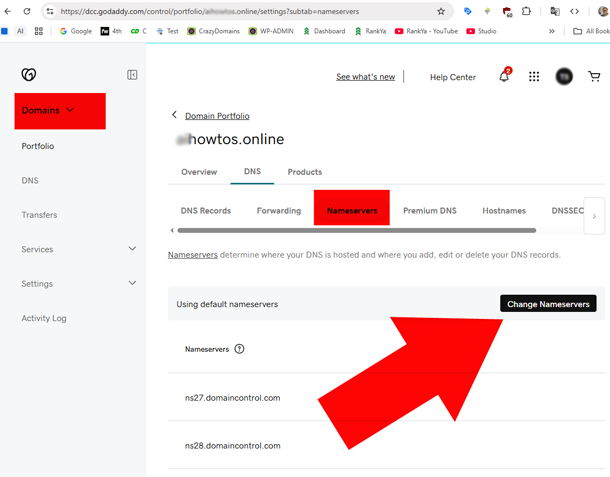 Crazy Domains Domain Nameserver Change Option:

After you save your changes on your domain registrar account, it can take some time for the change to become active across the internet. This is called DNS propagation and can take anywhere from a few minutes to 24 hours, though it is usually quite fast.
How-to Speed-Up DNS Propagation

Open Windows Command Prompt (Search Windows Search Box with CMD) and run these commands:
- ping yourwebsite.com
- nslookup yourwebsite.com
- tracert yourwebsite.com
Step 5: Complete the Quick Start Guide
After updating your nameservers, go back to the Cloudflare tab and click ‘Done, check nameservers’. Cloudflare will then prompt you to go through a Quick Start Guide to configure some basic settings.
Automatic HTTPS Rewrites
This is a great Cloudflare feature. It helps fix mixed content issues by changing ‘http’ links to ‘https’ on your site where possible. It is safe to turn this on.
Always Use HTTPS
This setting redirects all visitors using ‘http’ to the secure ‘https’ version of your site. You should definitely enable this for better security and SEO.
Speed Optimization
There are many options to speed up your website. Free options you can confidently use are: Speed Brain (currently in Beta Stage) and Rocket Loader™ which can help speed up your website. Paid options for Speed Optimization are ideal if you haven’t learnt how-to optimize your website using RankYa Website Optimization Techniques. Note: while some features this can improve speed, it can sometimes cause issues with certain websites.
Important to Remember
Using Cloudflare CDN is not always suitable for all websites. When to use it? Only if your website visitors are coming from around the globe. When not to use it? No need to use it if your target audience resides within specific country. Is your target audience in Australia? RankYa recommends Crazy Domains because they give you best of both worlds (Australian based servers, also 1-click Cloudflare Integration when needed). Get 12% Exclusive Discount for Crazy Domains Products
Frequently Asked Questions
Is Cloudflare really free to use?
Yes, Cloudflare offers a very generous free plan that includes their global CDN, free SSL certificate, and robust security protection against threats like DDoS attacks. Free plan is powerful enough for most personal blogs, small businesses, and portfolio websites.
How long does it take for Cloudflare to start working on my site?
After you change your nameservers at your domain registrar, it can take anywhere from a few minutes to 24 hours for the changes to fully propagate across the internet. In most cases, you will see your site become active on Cloudflare within an hour.
Will my website go down when I switch to Cloudflare?
No, if you follow the steps correctly, there should be no downtime. Because you are only changing where the domain name points, your website remains online at your hosting provider during the entire transition. The switch is seamless for your visitors.
Do I absolutely need the Cloudflare plugin for my WordPress site?
The plugin is not required for Cloudflare to work, but it is highly recommended for WordPress users. It provides automatic cache clearing, optimal settings for WordPress, and allows you to view analytics and adjust some settings directly from your WordPress dashboard, making management much simpler.
What is the best Cloudflare SSL/TLS setting to use?
The 'Full (Strict)' mode is the most secure and recommended option. It ensures a fully encrypted connection from the visitor's browser all the way to your web server. To use this mode, you must have a valid SSL certificate installed on your hosting server first (many hosts provide this for free).
