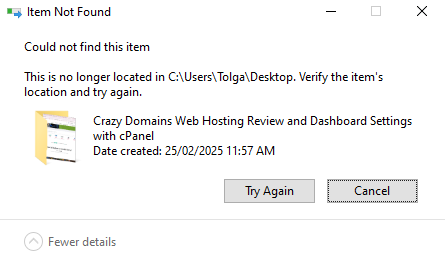
If you’re frustrated with Microsoft Windows that won’t let you delete a folder or file that you know is there, and Windows keep showing message dialog
Item not found Could not find this item this is no longer located in C:\Users\NAME\Desktop. Verify the items location and try again.
Here’s how to troubleshoot errors for persistent folders/files that Windows just won’t delete.
IMPORTANTS
- Before you do anything, consider a simple REFRESH (right click Refresh) as at times that does it.
- If folder or file path include an EMPTY SPACE, ensure you include them when using the below examples.
- Use double quotes “C:\Users\NAME\Desktop\test”
Video Tutorial for Deleting a Folder Windows Won’t Delete
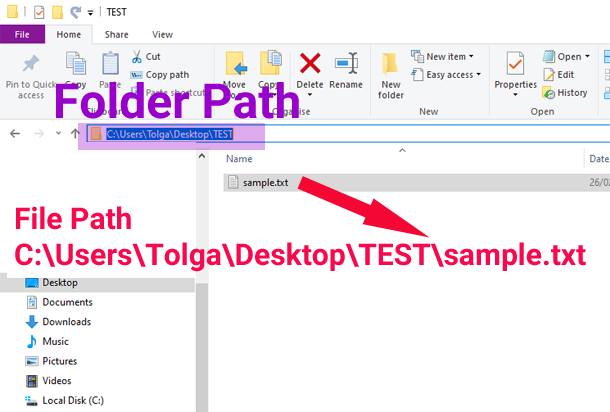
First step is to identify and check the Folder or File Path to ensure the file or folder path is correct.
PATH = location
example: C:\Users\YourName\Desktop\TEST
example: C:\Users\YourName\Desktop\TEST\sample.txt
Use Windows Command Prompt to DELETE a FOLDER
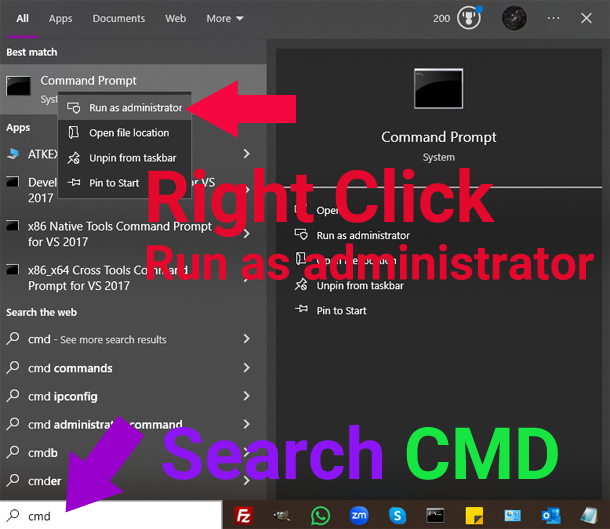
- Search Windows search bar “CMD” and Right Click to “Run as Administrator“.
- Deleting a Folder: Type
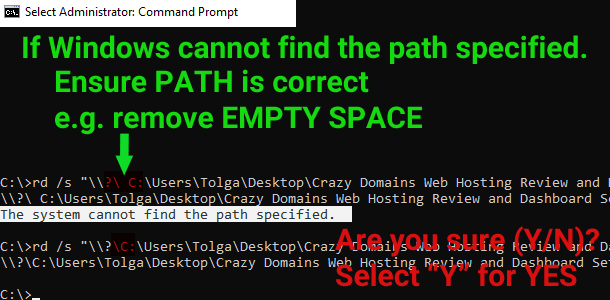
rd /s "\\?\full_path_to_folder"Confirm “Y” yes for deletion. EXAMPLE: rd /s "\\?\C:\Users\NAME\Desktop\TEST"
If Windows command prompt message says “The system cannot file the path specified.” error. Double check your path (usually there is an empty space that must be removed).
If Windows command prompt message says “The directory name is invalid.” error. That means you’re trying to delete a file but not a folder. Use examples below for file deletion.
At this stage the folder microsoft windows didn’t delete should be removed from your system. You can also try this code if above codes didn’t work:
rmdir /s /q "full_path_to_folder"
NOTE: if FOLDER PATH includes any empty space, then, include that when deleting "C:\Users\NAME\Desktop\test "
Use Windows Command Prompt to DELETE a FILE
- Search Windows search bar “CMD” and Right Click to “Run as Administrator“.
- Deleting a File: Type
del /f /q full_path_to_file EXAMPLE: del /f /q "C:\Users\NAME\Desktop\test.txt"
NOTE: if FILE PATH includes any empty space, then, include that when deleting "C:\Users\NAME\Desktop\test .txt"
If Windows command prompt message says “Could Not Find” this usually occurs due to missing file extension. Example: full_path_to_file.txt (this .txt is the file extension in this example).
This above methods will remove the folder or file Windows doesn’t want to delete with normal “DELETE” option. However, since Microsoft Windows Accounts have different roles for different users. If for whatever reason the above steps did not work for you, then, you can finally try: Safe Mode: Boot into Safe Mode and delete the file or folder.
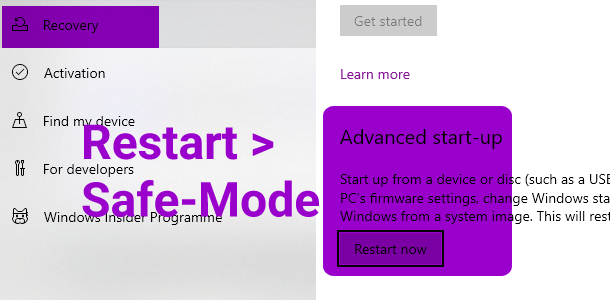
Windows Settings > Update & Security > Recovery > Advanced start-up > RESTART
When Windows restarts, login using SAFE MODE and try to delete the folder/file using normal deletion option.
