Ever open YouTube only to find your home feed flooded with videos you have zero interest in watching? Or have you selected “not interested” “do not recommend this channel” to no avail?
YouTube uses complex algorithms to suggest content based on what you watch, search for, and click. Not known to many users, your Google Account activity can also be used when recommending videos. Over time, a few accidental clicks, comments or a sudden rabbit hole can completely derail your recommendations.
Fortunately, taking back control of your feed is straightforward. You can easily reset the algorithm, filter out unwanted creators, and manage the underlying data Google uses to curate your YouTube daily feed.
Video Tutorial: How to Control and Manage Recommended Videos on YouTube (SOLVED)
How to Manage or Reset Video Recommendations Directly on Your Feed
When an unwanted video pops up on your homepage or home feed, you can teach the algorithm instantly that you do not want to see similar content.
Marking Content as Not Interested
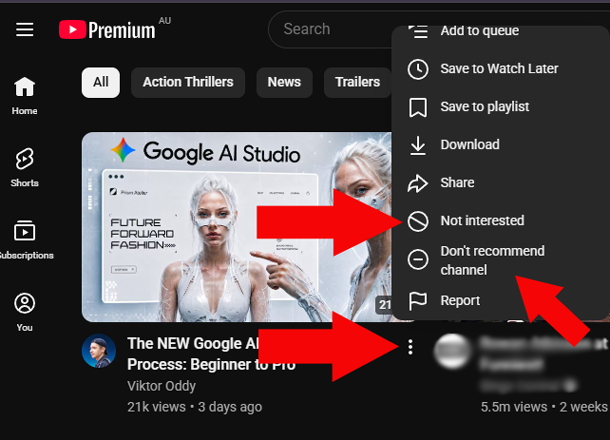
To tell YouTube you do not like a specific video suggestion, follow these quick steps directly from your homepage or mobile app feed:
- Hover over or tap the video thumbnail you wish to remove.
- Click the ⋮ three vertical dots icon located next to the video title.
- Select Not interested from the dropdown menu.
Doing this signals to YouTube to stop showing that specific video and reduces recommendations for similar subjects.
How to Manage or Reset Channel Recommendations
Sometimes you might dislike an entire channel rather than just a single video. If a creator repeatedly appears on your screen and you prefer not to see their uploads, you can hide the entire channel from your feed.
Stopping Suggestions from Specific Channels
Blocking a creator’s channel recommendations takes just two clicks:
- Find a video from the channel you want to stop seeing.
- Click the ⋮ three vertical dots next to the title.
- Select Don’t recommend channel.
Once selected, YouTube will stop suggesting videos from that specific creator on your home feed and up-next section.
Clear Your YouTube Search and Watch History
Your watch history and search queries serve as the primary engine driving your recommendation system. If your feed is cluttered with old interests, clearing your past activity offers a fresh start.
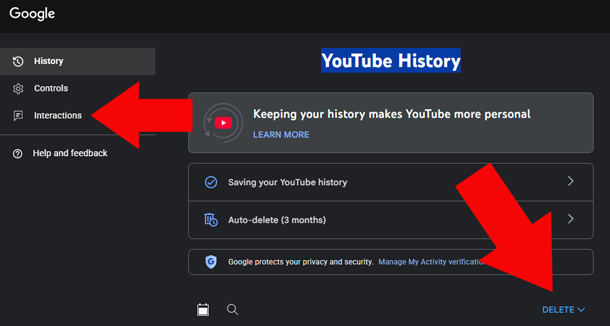
You can manage your global activity by visiting your Google My Activity dashboard. To focus strictly on video history, head over to your dedicated YouTube My Activity page. From here, you can delete specific watch logs, remove past search terms, or wipe out entire date ranges to reset your feed dynamics.
Pause or Turn Off YouTube History Saving
If you prefer that YouTube stops tracking your view habits altogether, you can pause history recording entirely. Pausing history prevents new views from influencing future home feed recommendations.
Navigate to YouTube History Controls. Here, you can toggle off the setting that saves the YouTube videos you watch and the terms you search for. You can also configure auto-delete options to wipe history automatically every 3, 18, or 36 months.
Review and Delete Past YouTube Interactions
Every like, dislike, comment, and playlist addition contributes subtle signals to YouTube’s recommendation engine. A single like on a trending video might cause similar videos to appear for weeks.
Visit your YouTube Interactions page to review past activity. Deleting old likes, comment histories, or community post interactions cleans up outdated preference data that might be misdirecting your home feed suggestions.
Manage Broader Google Activity Data
Google connects data across its entire ecosystem. What you search for on Google Search or websites you visit while logged in can shape what appears on your YouTube feed.
Check your Google More Activity dashboard to inspect web and app activity, location history, and other cross-platform data. Wiping or limiting non-YouTube activity prevents external web browsing from altering your video recommendations.
Fine-Tune Your Personalized Ad Preferences
Promoted content and sponsored recommendations also occupy prime real estate on your feed. Tailoring your ad settings creates a cleaner, more relevant browsing experience.
Go to My Ad Center to choose specific topics and brands you want to see more or less often. Customizing these categories reduces irrelevant advertisements appearing beside your recommended videos.
Take Back Full Control of Your YouTube Experience Today
Managing your YouTube feed is an ongoing effort, but taking these steps gives you a clean, customized video streaming experience tailored strictly to your current interests. To learn more about how YouTube handles account data, review your personal profile settings via Your Data in YouTube or visit the official YouTube Help Center guide on recommendations. Start clearing out old history today and enjoy a refreshed feed every time you open YouTube!