Google of today has now woven its artificial intelligence GEMINI directly into the other Google products and communication apps used by millions of people. If you open your inbox and spot the sparkling star icon, or intrusive side panel, or constant writing suggestions, you are interacting with Google Gemini.
While automated assistance can help with managing your email message, or summarize long message threads, many users find the added interface clutter distracting or hold legitimate concerns regarding privacy and automated data analysis.
Fortunately, you do not have to keep Gemini AI active inside your gmail messaging platform. Turning off Gemini restores a traditional, clutter-free communication hub. Below are the exact steps required to shut down Gemini AI features across desktop browsers, Android devices, and iPhones.
Video Tutorial: How to Disable Gemini in Gmail
If you access your messages through Chrome, Firefox, Safari, or Edge, turning off Gemini takes less than two minutes. The control is tied directly to your account smart features and Google Workspace smart features (learn about smart features and controls for Google Workspace and other Google products here).
- Open your desktop web browser, sign in to your Google account and visit mail.google.com.
- Click the Gear icon (Settings) located at the top-right corner of the screen.
- Select See all settings from the quick settings panel.
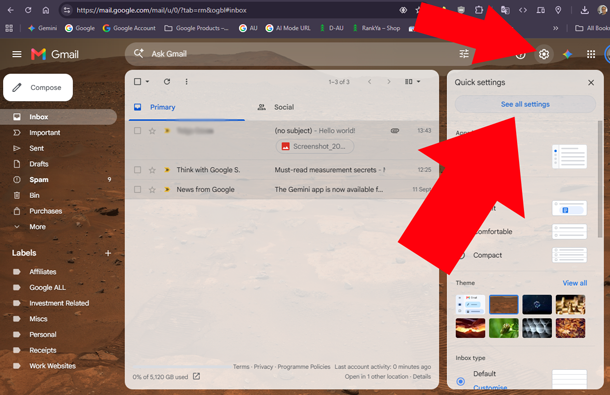
- Stay on the General tab and scroll down until you locate the Smart features and personalization section
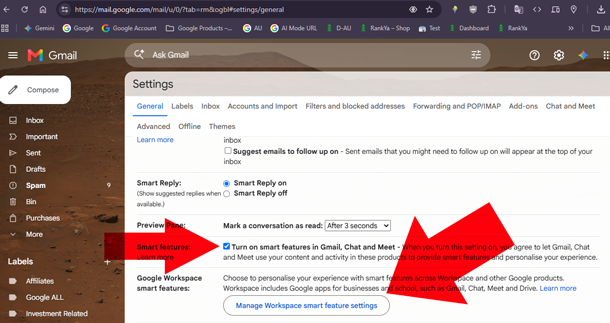
- Uncheck the box labeled Turn on smart features and personalization in Gmail, Chat, and Meet.
- Next, find the Smart features and personalization in other Google products option directly below it and turn it off as well.
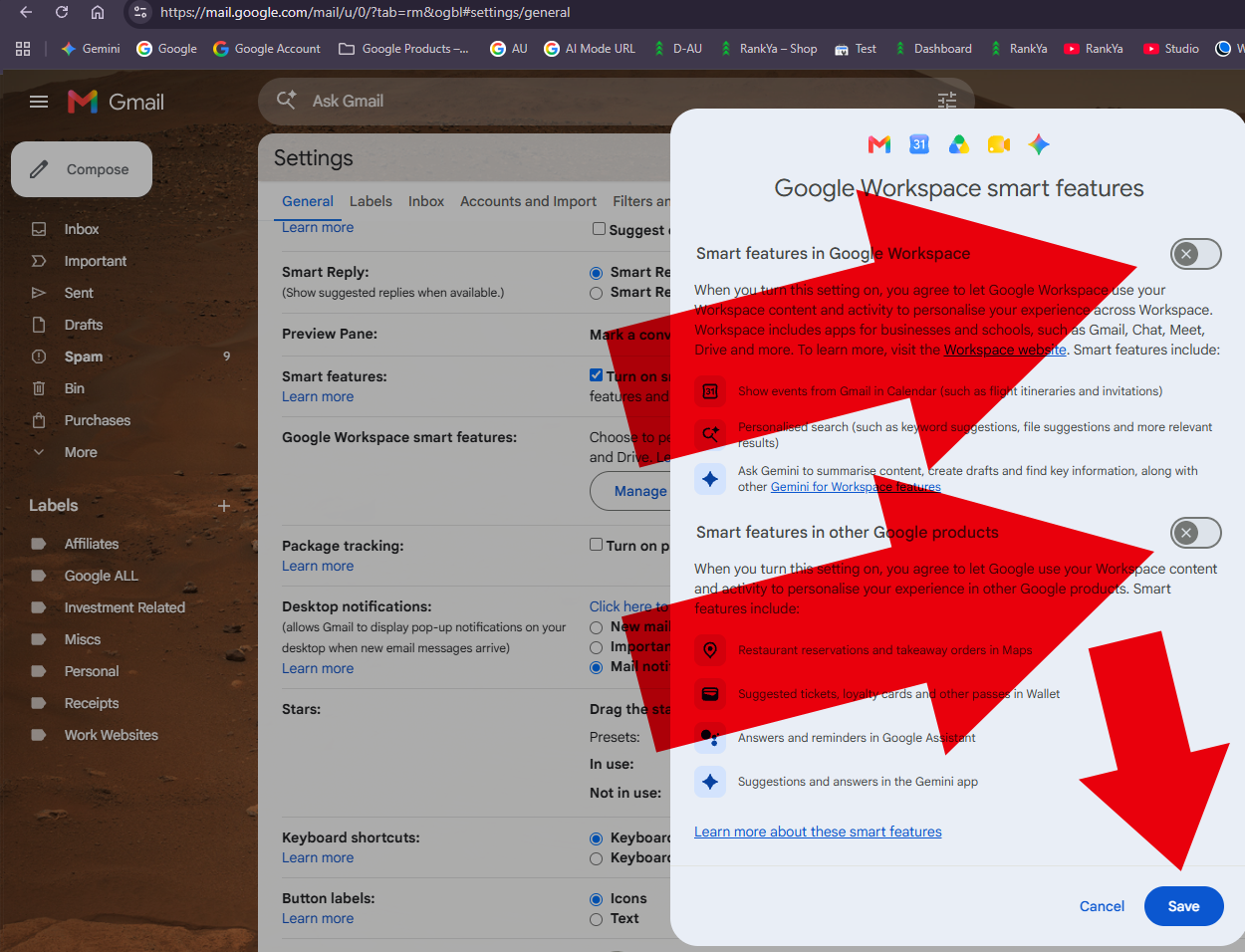
- Scroll to the very bottom of the page and click the Save Changes button.
Your browser will reload your inbox automatically. Once refreshed, the Gemini side panel, draft assistance prompts, and auto-summary buttons will disappear from your gmail user interface.
How to Disable Gemini in the Gmail App (Android)
Changing desktop settings does not always immediately propagate to your smartphone or tablet. To ensure a uniform experience, disable smart features inside the mobile application on your device.
Turning Off Gemini on Android
- Launch the Gmail mobile app on your Android phone.
- Tap the hamburger menu (three horizontal lines) in the top-left corner.
- Scroll down to the bottom of the navigation drawer and tap Settings
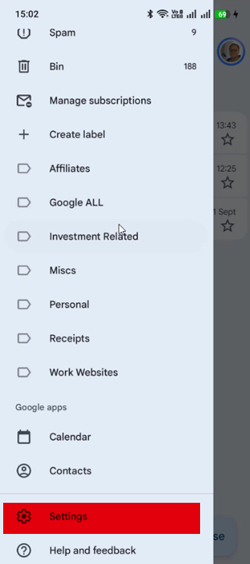
- Select the specific Google account email you want to adjust and press on the EMAIL ADDRESS
- Scroll down to the General section.
- Uncheck the option labeled Smart features AND Google Workspace smart features
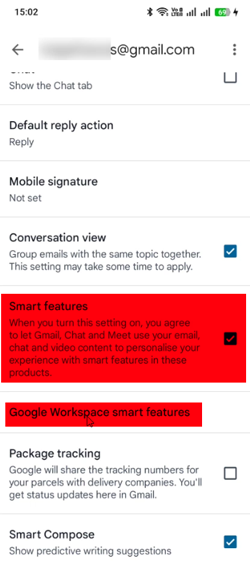
- UNCHECK the boxes to Confirm the prompt warning you that predictive text, categories, and automated cards will turn off
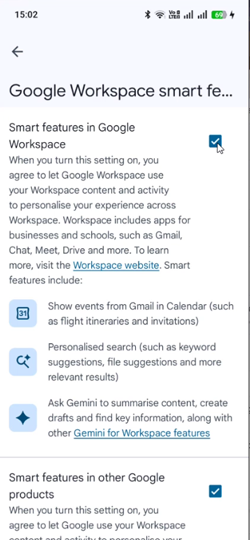
Turning Off Gemini on iPhone and iPad
- Open the app on your iOS device.
- Tap the menu button (three horizontal bars) in the search bar.
- Tap Settings near the bottom of the list.
- Tap Chat and Meet privacy or tap directly into your designated account profile.
- Locate Smart features and personalization and toggle the switch off.
- Restart the app to apply the changes completely.
What Happens After Disabling Gemini?
When you disable the core smart features, Google shuts down several algorithmic tools at the same time. Knowing these trade-offs ensures there are no surprises during your daily routine.
- No More Smart Compose: You will no longer see predictive grey text guessing your next words as you write.
- Automatic Package and Travel Cards Disappear: Gmail will stop extracting flight itineraries or shipping numbers into interactive summary cards at the top of messages.
- Manual Sorting: Automatic inbox filtering into Promotions and Social tabs may become less precise, giving you standard chronological delivery.
- Cross-Product Sync Stops: Google Assistant and Google Calendar will no longer automatically get data from gmail (due dates or reservation details) directly from incoming emails.
Why Turn Off Gemini AI in Your Inbox?
Before adjusting account preferences, it helps to understand what changes when you turn off these tools. Removing Gemini helps you:
- Eliminate the floating Gemini side panel and persistent toolbar icons that crowd your reading view.
- Stop automatic email summarization cards from popping up above message threads.
- Prevent AI-generated drafting suggestions and smart replies from interfering with your personal writing style.
- Minimize automated system scanning of personal messages, receipts, and attachments.
Benefits of Using Gemini in Gmail
Before customising your inbox workflow, it helps to understand how integrated AI tools can enhance your daily productivity. Enabling Gemini helps you:
- Draft polished emails, adjust tone, and generate contextual replies in seconds to speed up communication.
- Catch up instantly on lengthy email threads using concise, automated AI summaries.
- Find specific details, dates, and attachments across your messages without manual searching.
- Streamline inbox management by turning scattered notes or bullet points into clear, professional messages.
Take Back Control of Your Digital Workspace
Technology should simplify your workflow, not complicate it with unwanted suggestions and bloated toolbars. If you decide down the road that you want automated drafting or email summaries back, you can revisit your settings menu and re-enable smart features at any moment. Take two minutes today to update your preferences on both your computer and phone, and enjoy a faster, distraction-free inbox built around your privacy choices.
How-to Delete Gemini Activity
Google provides options to control how your use of Gemini activity is kept, you can Keep activity or not keep it, or delete past activity of your interactions with Gemini. To manage it visit https://myactivity.google.com/product/gemini
While here, do double check your Web & App Activity as well as Google Workspace search history both of which includes Gmail Activity.
Frequently Asked Questions
Can I turn off Gemini in Gmail without losing basic spellcheck?
No, Google bundles its generative AI tools and standard conveniences under the same Smart features and personalization toggle. If you disable that setting to eliminate Gemini summaries, "Help me write," and AI overviews, Gmail also shuts off:
- Gmail’s native spellcheck and autocorrect
- Grammar suggestions
- Smart Compose and Smart Reply
- Automatic package, flight, and calendar sync
How to Keep Spellcheck While Disabling Gemini
You can turn off Google's AI backend without losing typo highlighting by relying on external spellcheck:
Rely on Your Browser's Native Spellchecker
Once Gmail's internal spellcheck is turned off, modern browsers (Chrome, Firefox, Safari, Edge) still highlight spelling errors in text input fields.
- In Chrome: Go to Settings > Languages and ensure Check for spelling errors is turned on. Choose Basic spell check rather than "Enhanced" to keep text from being sent to Google servers.
Turn off Smart Features in Gmail
- In Gmail, click the Settings gear (top right) > See all settings.
- In the General tab, scroll to Smart features and personalization.
- Uncheck Turn on smart features in Gmail, Chat, and Meet.
- Click Turn off and reload.
Turn off Workspace-wide Smart Features
- Under that same section, click Manage Workspace smart feature settings.
- Turn off Smart features in Google Workspace and Smart features in other Google products.
Red squiggly lines will now come entirely from your local browser engine rather than Gmail's cloud-assisted text processing.
Will disabling Gemini delete any of my existing emails or labels?
NO. When you disable Gemini in Gmail, Google does not delete your previous messages or labels.
Can I re-enable Gemini in Gmail if I change my mind later?
YES. Simply follow the same process of disabling but do so in reverse to Toggle Smart Features back on to re-enable Gemini.