Using Samsung Galaxy Phone? You’ll have different settings compared to the video insights. Try navigating to Settings and checking the “Side button” options to manage how your digital assistant launches. And also you can check System Navigation (and in some phones *Gestures*)
To disable it on samsung phones, 1st try to find the above options, if no good, then, go to Settings > Google > All services > and find Gemini settings > on screen context > Toggle Off Access onscreen text.
Do you find Google Gemini constantly popping up or automatically recording your voice when you least expect it? Latest Gemini App & Android Version 16 has new gesture actions causing unintentional popup for “Ask Gemini” or even starts recording without you wanting it to do so. This usually happens due to accidental screen swipes or gesture triggers linked to your Android phone’s navigation settings.
Fortunately you can quickly take back control of your device by adjusting a couple of settings on your Android device.
Video Tutorial: How to Disable Ask Gemini Feature on Android Device
Video Tutorial: How to Stop Gemini Recording Automatically
Step-by-Step Fix
- Open your phone’s Settings app.
- Scroll down and tap on System & update.
- Select System navigation.
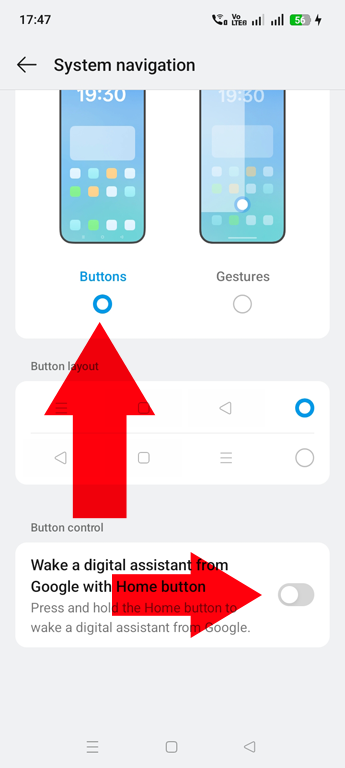
- Switch your navigation from Gestures to Buttons (this prevents accidental swipe triggers).
- Look for the Button control section at the bottom of the page.
- OPTIONAL: Toggle off “Wake a digital assistant from Google with Home button” if you do not want to wake up gemini with LONG PRESS of HOME button.
Final outcome should look like this image below ensuring Ask Gemini Popup window won’t show, or begin recording sounds automatically.
Before you go, double check your Gemini Apps Activity here. You can search and or delete previous activity. If you have enabled Google to save your voice and audio activity, you can search delete or control them through Web & App activity here.
Frequently Asked Questions
Can I Disable Google Gemini on my Android Device?
You can turn off digital assistant from Google whether you are using Assistant or Gemini as your phones digital assistant. Follow these instructions to turn off and disable gemini.
Can I still use Google Gemini intentionally after disabling the accidental triggers?
Yes, you can still use Google Gemini intentionally by manually launching the app or pressing and holding your home button if the Wake Assistant shortcut is enabled.
How do I switch my Android system navigation back to Gestures from Buttons?
You can easily switch your Android system navigation back by going to Settings > System & update > System navigation > Check the box under Gestures option.
Where is the setting to turn off the digital assistant on my phone's home button?
The setting to disable the digital assistant on your home button is found under Settings > System & update > System navigation > where you can toggle off the wake assistant feature under Button control (NOTE: you must have Buttons enabled as your system navigation to see this option).
Why does Google Gemini keep recording or popping up by itself?
Google Gemini keeps popping up or recording automatically because gesture navigation or shortcuts trigger the assistant when you swipe or press buttons by mistake during normal everyday use.
Can I Disable Gemini Live?
NO. Gemini Live is a built in feature of using Gemini App, it can not be disabled if you are using Gemini as your Digital Assistant.
What Other Android Settings Influence Digital Assistant Control?
There is another Android Setting called 'Power button' > 'Press and hold the power button' > 'Power menu' which actually allows you to disable Digital Assistant when you press the Power Button.
Furthermore: your Google App also has Gemini Settings which provides you greater control of your use of Gemini AI from Google. To Access it and Manage it visit: Go to Settings > Google > All Services > Search, Assistant and Voice > Gemini
Online Privacy Matters. Just as you wouldn’t want your neighbor peeking through your home’s window without your knowledge, control how you use your phone and or what gets recorded on your Android device is critically important in the age or Artificial Intelligence.