In short:
The “There is a new version of Contact Form 7 available, but it does not work with your version of PHP” error occurs because the plugin requires a minimum of PHP 8.3. To fix it, log into your hosting control panel (cPanel), navigate to MultiPHP Manager, upgrade your website’s PHP version to 8.3 or higher, and then run the plugin update from your WordPress dashboard.
Contact Form 7 displays a PHP version compatibility error when your web server runs an outdated PHP release (such as PHP 7.4, 8.0, 8.1, or 8.2) while the plugin requires PHP 8.3 or newer. Because you cannot update PHP inside the WordPress dashboard, you must upgrade your server environment via your hosting control panel before the update button becomes available again.
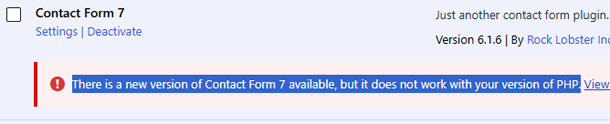
This above error occurs because modern plugin releases utilize newer programming features found in recent software updates. Contact Form 7 now demands a higher server baseline, leaving older hosting environments behind. Resolving this issue ensures your forms keep capturing leads without exposing your site to security vulnerabilities.
Video Tutorial: How-to Fix Contact Form 7 Plugin Update Error (Step-by-Step)
Understanding Why the Contact Form Update Fails
WordPress plugins rely heavily on the underlying server language powering your website. When plugin developers push out significant code upgrades, they often drop support for legacy PHP editions to maintain high coding standards, speed, and most importantly security.
- Contact Form 7 requires a minimum of PHP 8.3 (OCT 2026) to execute its latest functions properly.
- Your current hosting server is likely running an older release, such as PHP 7.4, 8.0, 8.1, or 8.2.
- WordPress flags this discrepancy to prevent your website from crashing or experiencing fatal error screens upon updating.
Step-by-Step Guide to Fixing the PHP Version Error
Updating your server environment might sound intimidating, but most web hosting control panels make the process straightforward. Follow these steps to clear the warning and update your plugin safely.
Step 1: Check Your Current PHP Version
Before making any changes, verify what your server is currently running. Inside your WordPress dashboard, navigate to Tools > Site Health and click on the Info tab. Look for the Server section to check your active PHP version.
Step 2: Log Into Your Hosting Control Panel
Your PHP version is managed by your web hosting provider, not directly inside WordPress. Log into your hosting account dashboard (such as cPanel, Plesk, or your custom host interface like SiteGround, Bluehost, or WP Engine).
Step 3: Update PHP via MultiPHP Manager or PHP Selector
Locate the tool named MultiPHP Manager, Select PHP Version, or similar software settings within your control panel:
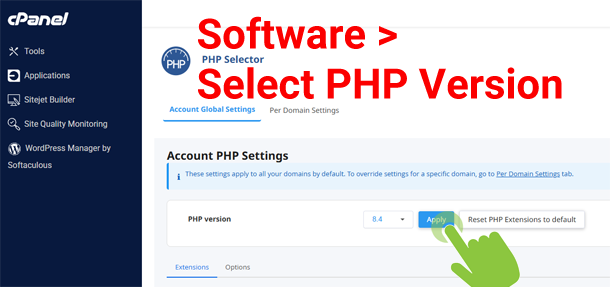
- Select your domain name from the list.
- Choose PHP version 8.3 (or the highest stable version available) from the dropdown menu.
- Click Apply or Save to update your environment.
- To learn more about safe upgrading practices, check out the official WordPress PHP Update Guide.
Step 4: Test Your Website and Run the Update
Once your server environment is updated, clear your website and browser cache. Return to your WordPress dashboard, navigate to the Plugins page, and click update on Contact Form 7. Test your contact forms on the frontend to make sure everything works smoothly.
Take Action and Secure Your Website Today
Ignoring server PHP compatibility warnings can leave your website vulnerable to bugs and security threats. Take a few minutes right now to log into your host, upgrade your server environment, and keep your contact forms running smoothly. Head over to your hosting control panel, switch to PHP 8.3 (or higher 8.5), and enjoy a better WordPress built website.
Frequently Asked Questions
Why does Contact Form 7 suddenly display a PHP version error in my WordPress dashboard?
Verification: Go to Tools > Site Health > Info, expand the Server section, and check your active PHP version compared against the plugin notice.
Can I update my PHP version directly inside the WordPress administrative dashboard?
No, you generally cannot update your PHP version directly inside the WordPress administrative dashboard. PHP runs on your web server, not within WordPress itself.
Verification: You can view your PHP version under Tools > Site Health, but there is no interface option to change or upgrade it there.
The Correct Method: You must update your PHP version through your hosting account control panel (such as cPanel, Plesk, or your host's dashboard like SiteGround Site Tools) under sections like MultiPHP Manager or PHP Settings.
What steps should I take if updating my PHP version causes unexpected issues on my website?
- Roll Back Your PHP Version (Immediate Fix): Log back into your hosting control panel and change your PHP version back to the previous stable version you were using.Verification: Refresh your website and dashboard; your site should return to normal operation.
- Update All Themes and Plugins (Preparation): Before attempting the PHP upgrade again, ensure WordPress core, your theme, and all plugins (especially Contact Form 7) are updated to their latest versions. Outdated software often causes conflicts with newer PHP versions.Verification: Check the Dashboard > Updates screen to confirm everything is up to date.
- Identify Incompatible Code (Troubleshooting): Enable debugging in your wp-config.php file (define( 'WP_DEBUG', true );) to catch specific error logs pointing to which theme or plugin is causing the error. Update or replace that specific item, then retry the PHP upgrade.Verification: Review the wp-content/debug.log file to ensure no fatal errors are being thrown.