Understanding what happens after a user clicks your ad is essential for any successful PPC campaign. For many businesses using WordPress, a key action is a user filling out Contact Form 7 plugin. In this blog post, I’ll show you how to set Conversion Tracking Tags correctly on your WordPress site.
Get Your Conversion Details from Google Ads
First, you need to create a conversion action inside your Google Ads account if you haven’t done so already. This tells Google Ads what you want to track.
- Navigate to ‘Goals’, then ‘Conversions’, and click ‘New conversion action’
- Select ‘Website’ and enter your website domain
- Choose ‘add a conversion action manually’
- Select ‘Submit lead form’ as the goal category and give your conversion a name like ‘Contact Form Submission’
Now, that you’ve created Conversion Action, you need to either install the tag manually on your website, or use ‘Google Tag Manager’ to fire the event when Contact Form 7 messages are sent.
Video Tutorial: How-to Install Tag Manually
How-to Install the Tag Yourself
This is by far the best way to track conversions on WordPress, do it manually instead of using plugins.
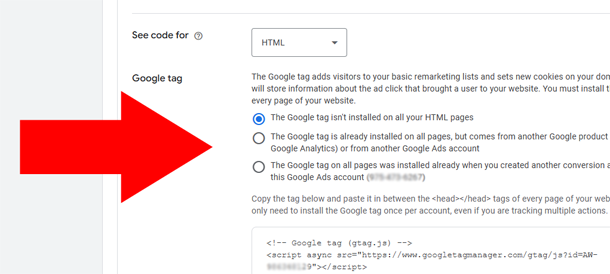
If Google Tag is already installed, select appropriate option.
Event snippet: select ‘Click’ event.
Locate and edit your WordPress Site Theme. Usually found through cPanel > File Manager > public_html > wp-content > themes > yourTheme > header.php
We want to add the event snippet code and call gtag_report_conversion when someone sends the contact form 7 successfully. To do that, you will need to add download codes, and also add:
document.addEventListener( 'wpcf7mailsent', function( event ) {
  gtag_report_conversion();
}, false );
Final code should look like this because you’ve added wpcf7mailsent EventListener that calls gtag_report_conversion function:

Video Tutorial: Setup Tag with Google Tag Manager
Conversion Tracking Using Google Tag Manager
If you can’t install the tag manually, you can still setup conversion tracking using Google Tag Manager (GTM). Note down, or keep the Google Ads Conversion Summary window open to access your unique Conversion ID, and Conversion label details.

Then, login to GMT account and select the WorkSpace you are working in. Then, it is basically a 2-step process.
Step 1: Configure a Trigger in Google Tag Manager
The trigger tells GTM when to fire your conversion tag. For Contact Form 7, we can use the custom event it creates upon a successful submission. This event is named wpcf7mailsent which is a built in Contact Form 7 Function.
- In GTM, go to ‘Triggers’ and create a ‘New’ one
- For the Trigger Configuration, choose ‘Custom Event’
- In the ‘Event name’ field, enter ‘wpcf7mailsent‘
- Name your trigger something meaningful like ‘CF7 Form Success’, and then Save it
Step 2: Create the Google Ads Conversion Tracking Tag
Now, you will create the tag that sends the information to Google Ads when your trigger fires.
- In GTM, go to ‘Tags’ and click ‘New’
- For Tag Configuration, select ‘Google Ads Conversion Tracking’
- Enter the ‘Conversion ID’ and ‘Conversion Label’ you got from Google Ads
- Under ‘Triggering’, select the ‘CF7 Form Success’ trigger you just created
- Name your tag ‘Google Ads – Contact Form Submission’ and save it
After saving, remember to ‘Submit’ your updated changes in Google Tag Manager to make them live on your website.
How to Verify Your Tracking is Working
After implementation, you must check that everything is functioning correctly. The easiest way is to use Google Tag Assistant (or Tag Assistant Chrome extension) that shows you which tags are firing on your page. To test your new conversion tracking on Contact Form 7 (simply send a test message) and notice the change in Google Tag Assistant.
You can also look at the ‘Conversions’ section in Google Ads. After a successful form submission, the status of your conversion action should change from ‘Unverified’ to ‘Recording conversions’ within a few hours.
Alternative Method: Google Analytics 4 Enhanced Measurement + Custom Events
If you prefer a simpler setup and don’t want to install the tag manually or use Google Tag Manager, you can still track conversions by ensuring Google Analytics 4 Enhanced Measurement which automatically helps you track form_submit as Custom Events which you can track as conversions in Google Ads.
