
The console message “Third-party cookie is blocked in Chrome either because of Chrome flags or browser configuration” indicates that Chrome browser is configured to block third-party cookies, preventing the webpage request from setting, or accessing cookies.
This specific console message appears because when a cookie is considered as third-party (as in, set by external website), latest version of Chrome’s privacy settings are blocking the cookie operations that are necessary for a particular function to work correctly.
All of this is part of Google Chrome’s ongoing effort to enhance user privacy by limiting cross-site tracking.
Video: What is ‘Third-Party Cookie is Blocked’ Chrome Message
How to Verify
You can confirm that if third-party cookies are blocked or allowed in your Chrome settings by:
- Navigate to chrome://settings/cookies
- Check if “Block third-party cookies” is selected
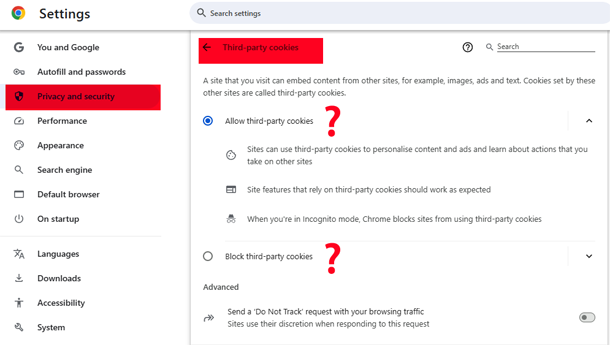
Furthermore, you can check Chrome flags by navigating to chrome://flags/#test-third-party-cookie-phaseout to see if the test-third-party-cookie-phaseout flag is enabled.

To identify which cookies are blocked: Open DevTools (F12) and select the Network tab. In the “Cookies” tab, look for cookies with an information icon next to them. Hovering over the icon should show a tooltip indicating which cookie was blocked.

How-to Fix (Webmaster Edition)
Understand the changes Google is making related to using third-party cookies and audit cookie usage of your website (or App). Use Privacy Sandbox Analysis Tool (PSAT) (Chrome DevTools extension with specialized capabilities to help developers deal with the deprecation of third-party cookies and adoption of alternative APIs).
How-to Fix (General User Edition)
If your favorite website isn’t working as expected, ensure Google Chrome Settings are set to “Allow third-party cookies”.
You can also add your favorite website specifically to allowed list in Chrome. For example: to add google.com as an exception to your blocking settings:
- Go to chrome://settings/cookies.
- Scroll down to the “Sites that can always use cookies” section.
- Click “Add”.
- Enter [*.]google.com in the site address field.
- Ensure “Including third-party cookies on this site” is checked.
- Click “Add”.
The Future
Privacy will become more and more important, long gone are days tracking people across websites or platforms (online or offline) and show them retargeted Ads.
If you are a marketer, you’ll need to consolidate user data from different sources (Website Analytics with Google Analytics with Meta Pixel Data with YouTube Analytics etc.). To continue to retarget, you’ll need to ensure your website adheres to consent mode v2.
If you are a Chrome user, you’ll need to triple check your Data and Privacy settings and ensure you fully understand how-to use activity controls Google provides to all account holders.
