Want to automatically delete your online activity stored in your Google Account? It’s easier than you think to manage your digital footprint and control your privacy settings using the latest options Google Activity Controls provides you. This guide shows you how-to automatically delete your activity across various Google Products, because understanding how to automatically delete my activity is key to better maintaining online privacy.
What Activities Have Auto-Deletion Option?
Google collects a massive amount of data everytime you use Google products or services (if you have Location Services turned on, tracking maybe occuring even when you’re sleeping). Fortunately, Google offers several options for automatic deletion. You can configure Auto-Delete for these Google products:
- Web & App Activity (this includes ALL Web and App history (Search App, Google Play, Assistant, Google TV, Chrome etc.))
- Timeline (is related to Google Maps)
- YouTube History
Video Tutorial: How-to Delete Google My Activity Automatically
How-to Automatically Delete My Activity
Login to your Google Account.
Go to your Google Account’s Data and Privacy settings.

Find and press on My Activity controls button.

Select Google Product you want to Turn-On Auto Deletion for (e.g. Web & App or YouTube or Timeline). Below screenshot shows ‘Web & App Activity’

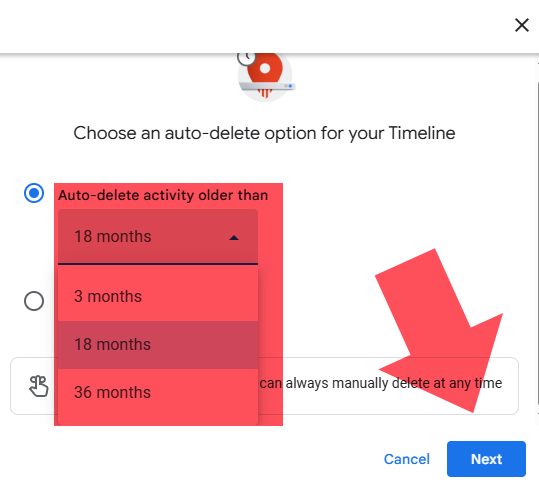
You can choose to delete your activity automatically after a set period (3 months or 18 months or 36 months).
Remember that turning on auto delete for 1 product will not auto-delete others (Web & App Activity, Timeline History, YouTube History) because you have to turn on auto delete for any of these 3 sections of Google Account. For example: auto deleting Maps Timeline:
For example YouTube History:

Taking Control of Your Digital Footprint
Regularly deleting your Google My Activity helps better protect your privacy. By utilizing the automatic deletion features offered by Google and regularly reviewing your settings, you can maintain better control over your digital footprint. Remember to consult the help documentation of each individual service for the most up-to-date instructions. Want to learn more? Using Android?
Video Tutorial: How-to Clear and Turn-Off Search Suggestions and Delete Chrome History (Android)
Importance of Regular Checks
While automatic deletion is a great feature Google now offers, it’s important to periodically check your My Activity Settings and manually review your data to ensure everything is working as expected.
