In this blog post I’m going to show you the often hard to find settings that control Search Suggestions on Google Products. We’ll focus on using a Desktop device, if you’re on an Android device visit this link instead: How-to Turn-Off Search Suggestions on Android. If not, let’s continue:
Video Tutorial: How-to Control Search Suggestions
Managing your search suggestions and history is a crucial step towards safeguarding your digital privacy. It could get annoying when using Google products, or, everytime you type in a search bar, autocomplete suggestions can reveal your previous queries to anyone else using your device. By taking control of these settings, you prevent your private search history from being inadvertently displayed, ensuring that your personal information remains confidential and secure.
Desktop: Step 1 Turn Off Search Personalization
The most common type of search suggestion comes from Google search App through Personalized Search Settings. These suggestions pop up as you type in the Google search bar. To disable them:
- Make sure you’re logged in to your Google Account
- Turn Off Search Personalization by toggling ‘Personalise Search’

Desktop: How-to Turn off Auto-complete with trending searches
- Turn Off Other Search Settings by toggling ‘Auto-complete with trending searches’ to Off.
Desktop: Step 2 Turn Off Web & App Activity Saving
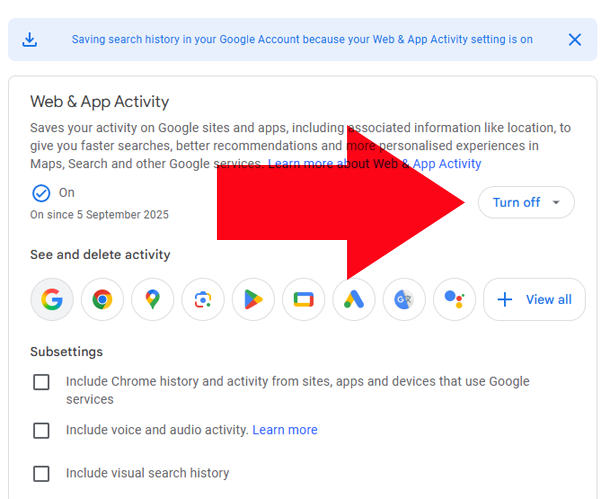
Google saves your activity on Google sites and apps for providing faster searches, better recommendations and more personalised experiences in Maps, Search and other Google services. To disable them:
- Turn Off Web & App Activity saving by pressing ‘Turn-Off’ (at this stage you may consider to delete previous activity history).
My Activity Chrome History
If you’re using Google Chrome, you may want to Manage Chrome History. Also, for comprehensive guide visit: Delete ALL Chrome Activity History
Final Notes
Beyond privacy, customizing your search settings allows you to create a more streamlined and focused browsing experience. Unwanted or irrelevant trending searches can be distracting and clutter your search results with content that doesn’t align with your interests. Using your Desktop device following these steps will ensure Google will no longer provide search suggestions. This is a simple and effective way to regain control of your searches.
Subscribe on YouTube to: Master Your Google Account & Google Products
