
Pointing your domain to your Crazy Domains hosting account is the first step to move a live website to Crazy Domains hosting. The process involves changing your domain’s current nameservers and DNS Settings. This guide will walk you through the steps, whether your domain is registered with Crazy Domains or another company.
IMPORTANT: if your domain is live with a web site already installed, then, make sure you move all your files/folders to your Crazy Domains hosting environment first.
Video Tutorial for Pointing a Domain to Crazy Domains Hosting
To be able to point a domain to be hosted with Crazy Domains Hosting, you will need 2 important information to begin with.
- Crazy Domains Nameservers
- Crazy Domains Web Hosting IP
What are Nameservers?
Think of nameservers as the internet’s phonebook. They tell web browsers where to find the server that hosts your website’s files. To connect your domain name (e.g., www.yourwebsite.com) to your Crazy Domains hosting plan, you need to update your domain’s settings to use Crazy Domains’ nameservers.
Step 1: Find Your Crazy Domains Nameservers
First, you need to know which nameservers to use. Login to your Crazy Domains account and find web hosting plan control panel.
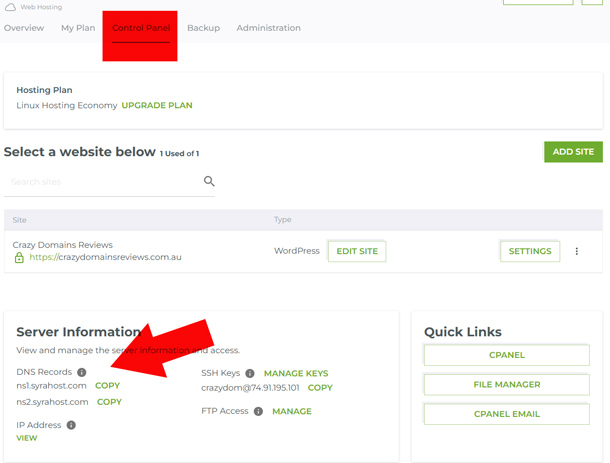
Crazy Domains typically uses the following default nameservers for their Linux web hosting plans:
- ns1.syrahost.com
- ns2.syrahost.com
Important: While these are the common nameservers, you should always double-check the welcome email you received from Crazy Domains when you purchased your hosting plan. Sometimes different hosting packages (like VPS or premium hosting) may use different nameservers.
Step 2: Update Your Domain’s Current Nameservers
The next step is to log into the control panel where your domain name is registered. This might be GoDaddy, Bluehost, or it could be another provider like Namecheap, etc.
Scenario A: Your domain is registered with Crazy Domains
- Log in to your Crazy Domains account.
- Navigate to the ‘Domains‘ section.
- Click on the domain name you want to manage.
- Look for an option called ‘Nameservers‘ or ‘Update Nameservers‘.
- Select the option to use Crazy Domains hosting (this might be a default option) or manually enter the nameservers from Step 1.
- Save your changes.
Scenario B: Your domain is registered with another company
- Log in to your account with your domain registrar (e.g., GoDaddy, Namecheap, etc.).
- Find your list of domains and go to the management settings for the domain you want to point.
- Look for the DNS or Nameserver management section.
- You will likely see your current registrar’s default nameservers listed. Choose the option to ‘Change‘ or ‘Use Custom Nameservers‘.
- Delete the existing entries and enter the Crazy Domains nameservers:
- Nameserver 1: ns1.syrahost.com
- Nameserver 2: ns2.syrahost.com
- NOTE: you can always contact their support team.
- Save your changes. Your registrar may ask you to confirm that you know what you are doing, as changing nameservers is a significant action for a live site.
Step 3: Wait for DNS Propagation
After you save your new nameserver settings, the changes are not instant. It takes time for the update to spread across the internet in a process called DNS propagation.
This process can take anywhere from a few hours to 48 hours. During this time, your website might not be accessible, or it might load from your old host for some visitors. It’s best to be patient. Once propagation is complete, your domain will successfully point to your Crazy Domains hosting account, and your website will be live.
Step 4: Add DNS A Record

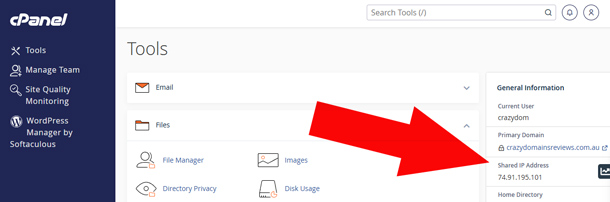
Now, next crucial step is to ensure that your domain points to Crazy Domains web hosting IP address. Simply find your web hosting IP Address from Crazy Domains Hosting. Depending on your web hosting plan, simply find the control panel for your web hosting.

You can also view your IP address through cPanel if you’re using cPanel option.
Tip to Speed UP DNS Propagation

You can use Windows Command Prompt and run 3 commands that will speed up the process of pointing your domain to Crazy Domains hosting, like so:
- ping example.com
- nslookup example.com
- tracert example.com
NOTE: Name servers may be different for your particular Crazy Domains hosting plan, as they sometimes use these nameservers:
- ns1.crazydomains.com
- ns2.crazydomains.com
When unsure, contact Crazy Domains support team.
